
Prism can report a successful Java test and still refuse to start Minecraft. The test checks whether Java runs; the game also needs a compatible version. Change the Java selection on the affected instance, then launch the same Minecraft version again.
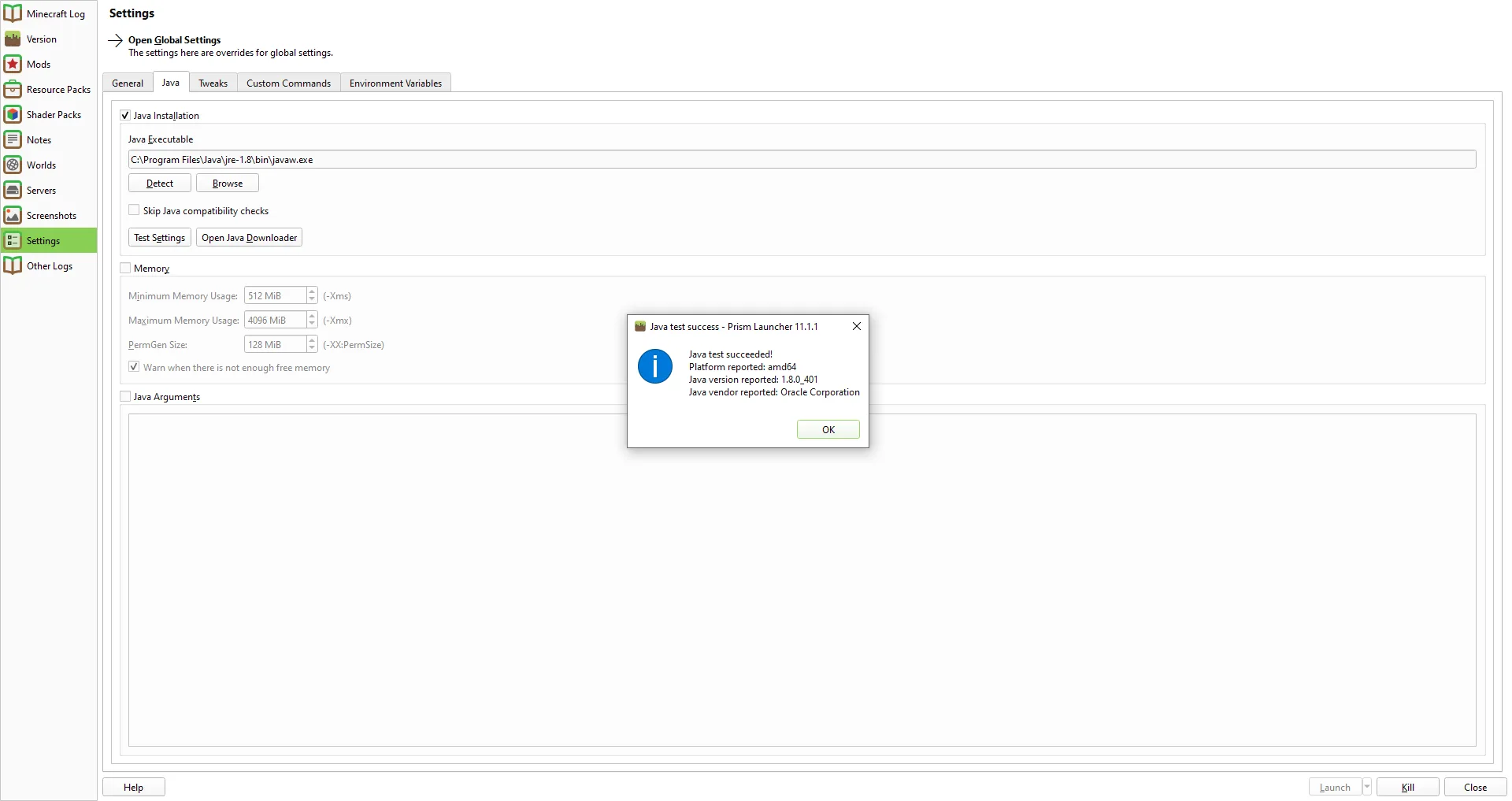
1. Check the Minecraft version
Open the affected instance and note its exact Minecraft version. Requirements differ between releases: Minecraft 1.20.5 requires Java 21, while Minecraft 26.1 requires Java 25. Check the requirement for the version you are launching instead of treating either number as a universal rule. A Java installation can be present on your computer without being selected by this instance.
In Prism's Version tab, read the Minecraft version separately from any Fabric or Forge loader. Keep the game version and loader unchanged while you correct Java. Changing both the runtime and game version at once makes it harder to tell which change addressed the launch problem.
2. Change Java for that instance
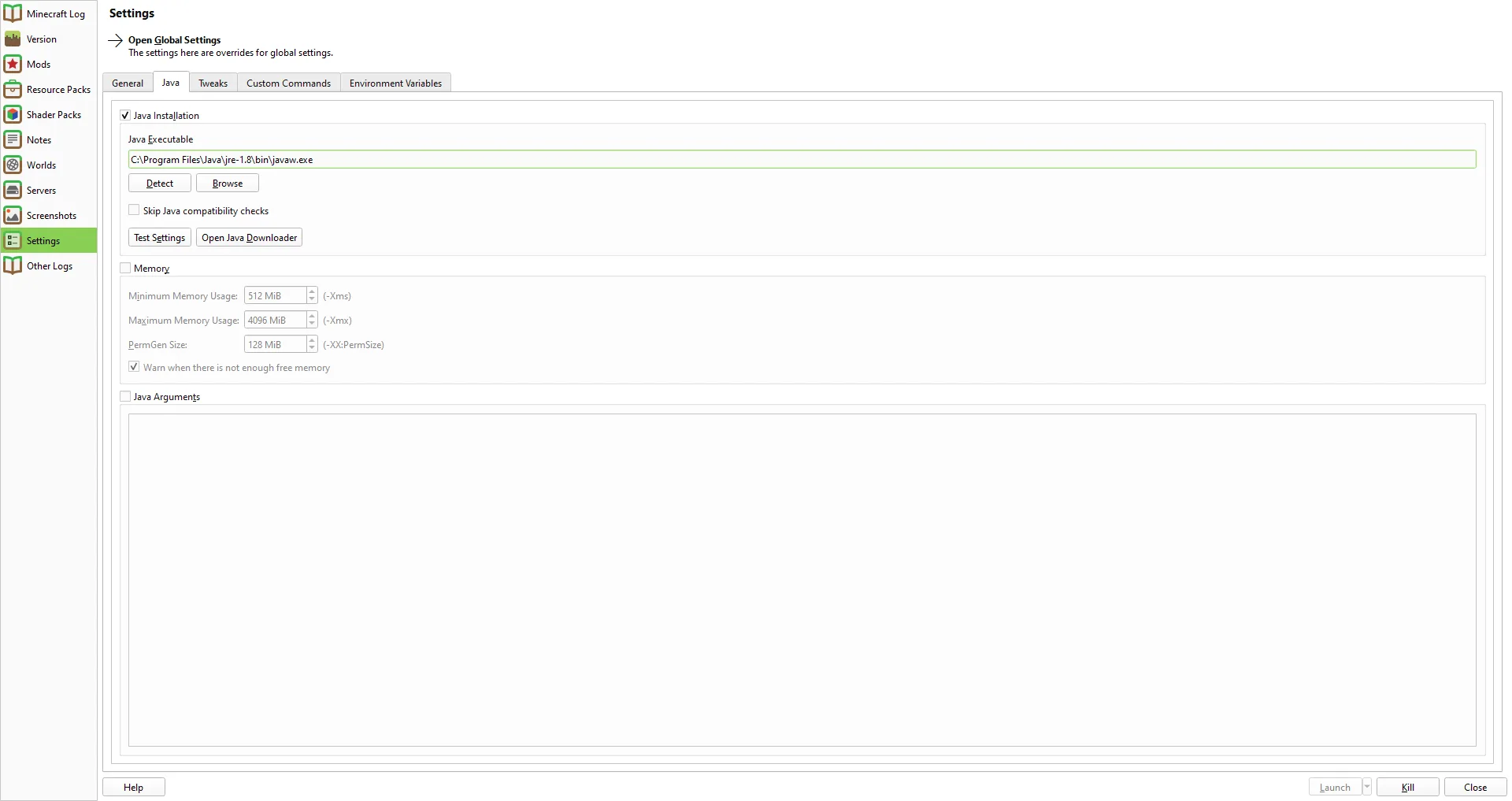
Select the instance that will not start, choose Edit, open Settings, and select Java. In Prism 11.1.1, Java Installation enables the instance's Java controls. Java Executable shows the selected runtime path; use Detect to find installed Java or Browse to select an executable. Choose one that meets the requirement for this instance's Minecraft version.
If the runtime you need is not available, use Open Java Downloader from this Java settings page. After downloading, confirm that the matching runtime is selected in Java Executable for this instance. Keep Skip Java compatibility checks unchecked so Prism can still flag a mismatch.
3. Treat Test Settings as a check of Java
Test Settings checks whether the selected Java process can start with the configured memory and JVM arguments. It does not start Minecraft. For example, Prism 11.1.1 reported that Java 1.8.0_401 passed its test, but the same Minecraft 1.21.10 instance rejected Java 8 and requested Java 21. The 1.8 in 1.8.0_401 means Java 8; the Minecraft requirement is a major version, not just a successful Java check. Compare those numbers directly. A green test and a rejected game launch can both be true.
If Test Settings itself fails, check that Java Executable points to an available runtime and review the instance's memory and JVM arguments. If the test succeeds but Launch reports a Java incompatibility, compare the selected runtime with the requirement for the Minecraft version instead of changing memory settings.
If Launch still reports an incompatibility after you select another runtime, verify that you edited the same instance you are launching and recheck its Java Executable field. Read the launch message before changing mods or world files. If it names a missing mod or library, the missing-dependency guide covers that separate problem.
4. Launch the same version and check your world
Choose Launch from the corrected instance. Once Minecraft reaches the title screen, open the world you intended to play. Reaching the title screen confirms that the game launched; opening your save checks that the world loads too. Save and quit normally, then open the world again if you need to confirm that it remains available. Test Settings alone cannot confirm any of these steps.
Comments 0
Share what worked, ask for help or reply to another player.
Use your Modonix account to join the discussion and manage your comments.
Sign in to commentNo comments yet. Share what worked for you.