
You downloaded a mod, put it in mods, and Minecraft still looks unchanged. Before downloading it again, check one simple thing: did you edit the folder belonging to the installation you launched? A launcher can keep several completely separate copies of Minecraft.
We used FerriteCore 9.0.0 for Fabric on Java 26.2 for the example below. It makes a useful first check because it loads quietly without adding blocks or a new activity to the world.
Match the game, loader and file
Read the file's Minecraft version and loader before downloading it. Fabric is the loader for this guide. A Forge or NeoForge JAR does not become a Fabric mod when you copy it into the same folder.
Choose the game version you want to keep playing. If a server or modpack uses an older release, select a compatible older mod file from that project's file history. You do not need to update a valued world just because a newer download exists.
Find the active game folder
With the official Minecraft Launcher, open Installations, edit the Fabric installation and check its Game Directory. A custom directory takes precedence over the usual .minecraft folder. With an instance-based launcher, use that instance's folder command rather than browsing to a different installation by memory.
Close the game before changing its mod files. In the selected game folder, open mods, creating that folder if necessary. Put the downloaded JAR there without unpacking it or running it as a separate application.
If this is your first Fabric installation, install Fabric Loader for the chosen Minecraft version first and select that profile when launching. Fabric Loader runs the mods; Fabric API is an additional mod required by many, but not all, projects. Follow the dependency list for the actual file you downloaded.
Launch once and check what loaded
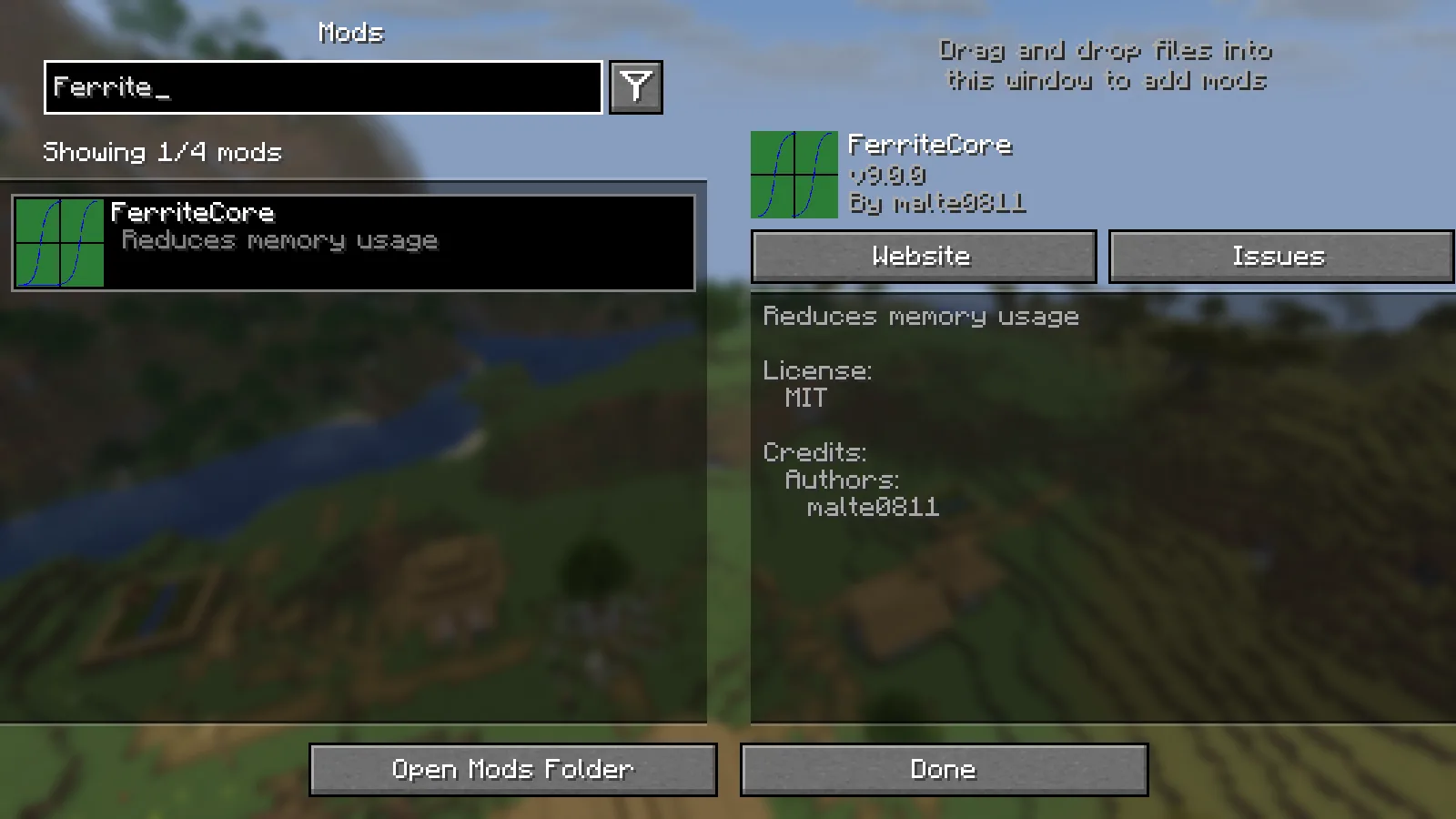
The loaded version is a better check than looking for visual changes from a background mod.
Here, searching for FerriteCore in Mod Menu shows v9.0.0 in the running game. That confirms this instance loaded the intended release. Mod Menu is optional; the loader's startup log can also identify loaded mods. Do not mistake the absence of a Mods button for proof that Fabric itself is missing.
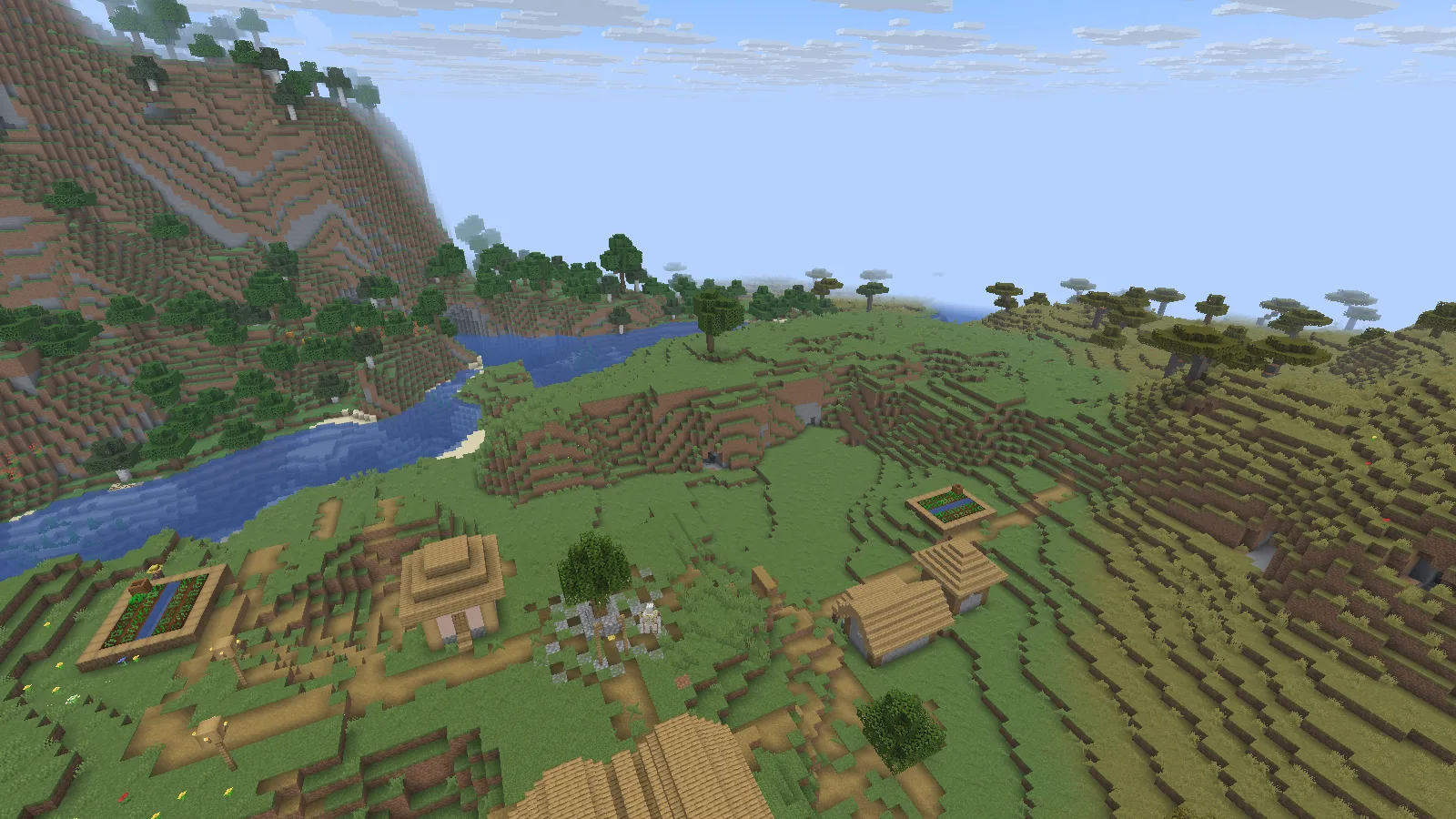
Open a small world after the loader has accepted the mod.
We then opened a village world. FerriteCore does not change the village's appearance, so looking for a new crafting recipe or prettier trees would be the wrong check. For a content mod, use a feature that the author actually describes; for a background mod, confirm that the release loaded.
Keep different playthroughs separate
Name installations clearly, such as Fabric 26.2 — building or Fabric 1.21.1 — server. Each can have its own mods, settings and saves. Keeping them separate makes it much harder to accidentally launch an older world with a different collection of mods.
When replacing a mod, remove its older JAR from that same instance. Keep backups outside the mods folder so the loader does not discover both versions. Before changing game versions or removing a mod that adds blocks and items, keep an untouched copy of the world.
Read the first useful line of an error
| What you see | What to check first |
|---|---|
| A required mod is missing | Install the named dependency for this game and loader |
| The mod needs another Minecraft version | Choose a matching file, or use a separate installation for that version |
| Duplicate mod | Keep one release of that mod in the active mods folder |
| The game opens normally but the mod is absent | Confirm the launched profile and the folder you edited |
| A modpack breaks after adding a file | Return to the working copy, then check the added mod and its dependencies |
Do not add several unrelated fixes at once. One change followed by one launch tells you much more than a folder full of guessed dependencies.
For a complete download example, see our FerriteCore guide. If you prefer a prepared client setup, Fabulously Optimized is installed as its own modpack instance rather than as one JAR.
This guide and its game screenshots are by Modonix. The installation choices follow Fabric's player documentation; the folder and loaded-mod checks are illustrated with our own separate game instance.
Comments & questions
Share what worked, ask for help or reply to another player.
No comments yet. Share what worked for you.