
A backup is most useful when you know how to open it again. Before changing Minecraft, your loader or several mods, preserve the current world and keep the working instance available. Try the update on a separate copy.
Make the world backup before updating
Finish playing, then use Save and Quit to Title. Open Singleplayer, select the world and choose Edit → Make Backup. In Java 26.2, Minecraft displays a Creating Backup screen while it writes the archive. Wait for it to finish.
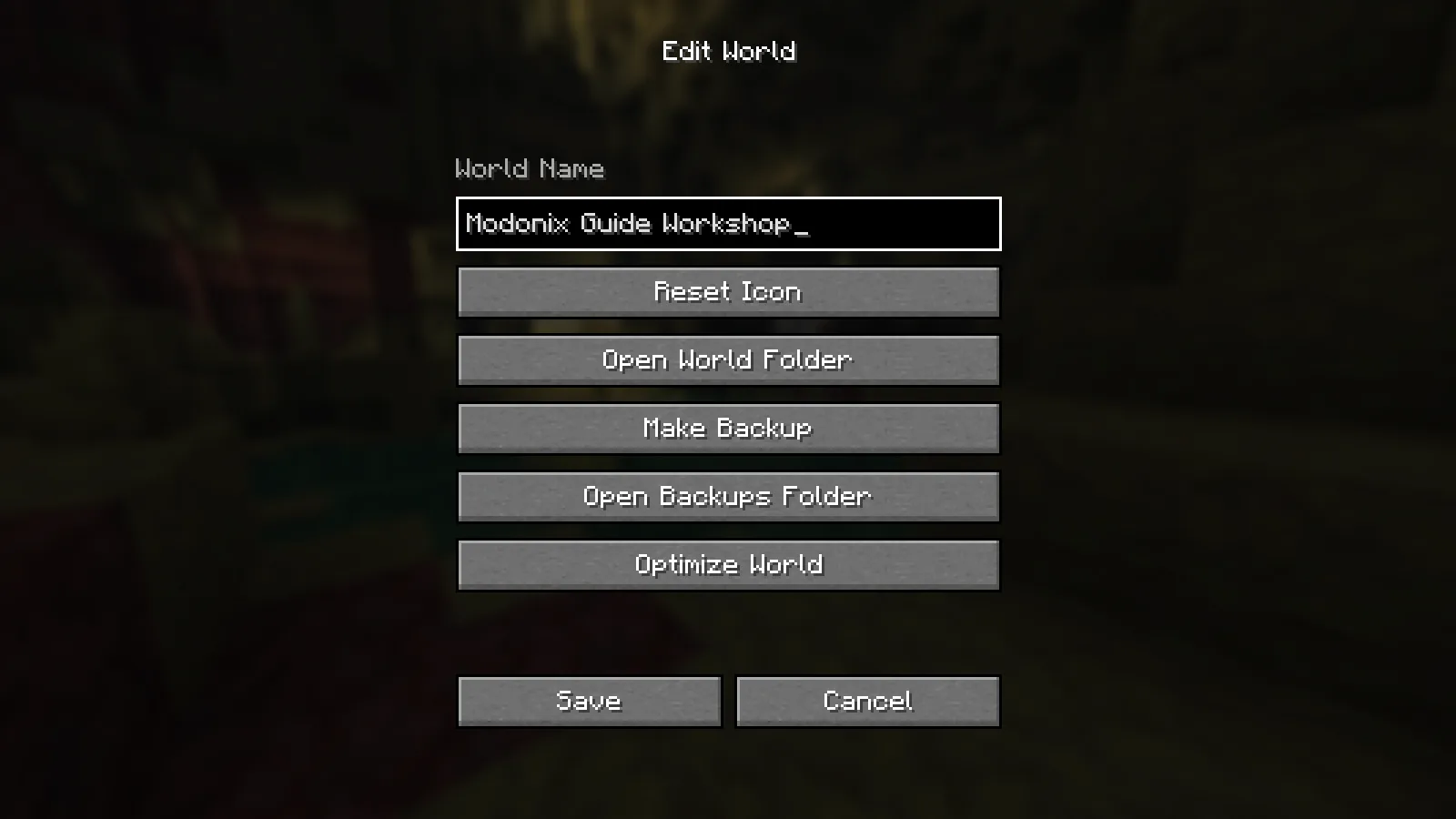
Java 26.2: select a saved world, open Edit, then choose Make Backup. The same menu provides Open Backups Folder.
The same Edit screen includes Open Backups Folder. Keep the dated archive somewhere separate from the world you will experiment with. A world backup does not preserve your entire mod setup: also keep the working instance's game version, loader, mods and configuration. If your launcher can copy instances, use that for a separate update trial rather than replacing the only working installation.
Restore into a new folder
Close Minecraft before restoring files. Open the game folder for the instance you intend to use, then its saves folder. Extract the backup into a new, empty world folder there, leaving the original save and backup archive untouched.
Check the folder nesting. The restored world's level.dat should sit directly inside its world folder, alongside the rest of the extracted contents. An extra wrapper folder can prevent the save appearing in the world list. Keep the complete extracted world together; copying only a region folder can leave player data or dimensions behind.
Launch the matching game version and mod setup. If both copies have the same display name, select the restored entry carefully and use Edit's World Name field to give it a clear label before playing. The on-disk folder name and the name shown in Minecraft need not be identical.
Check something you recognize
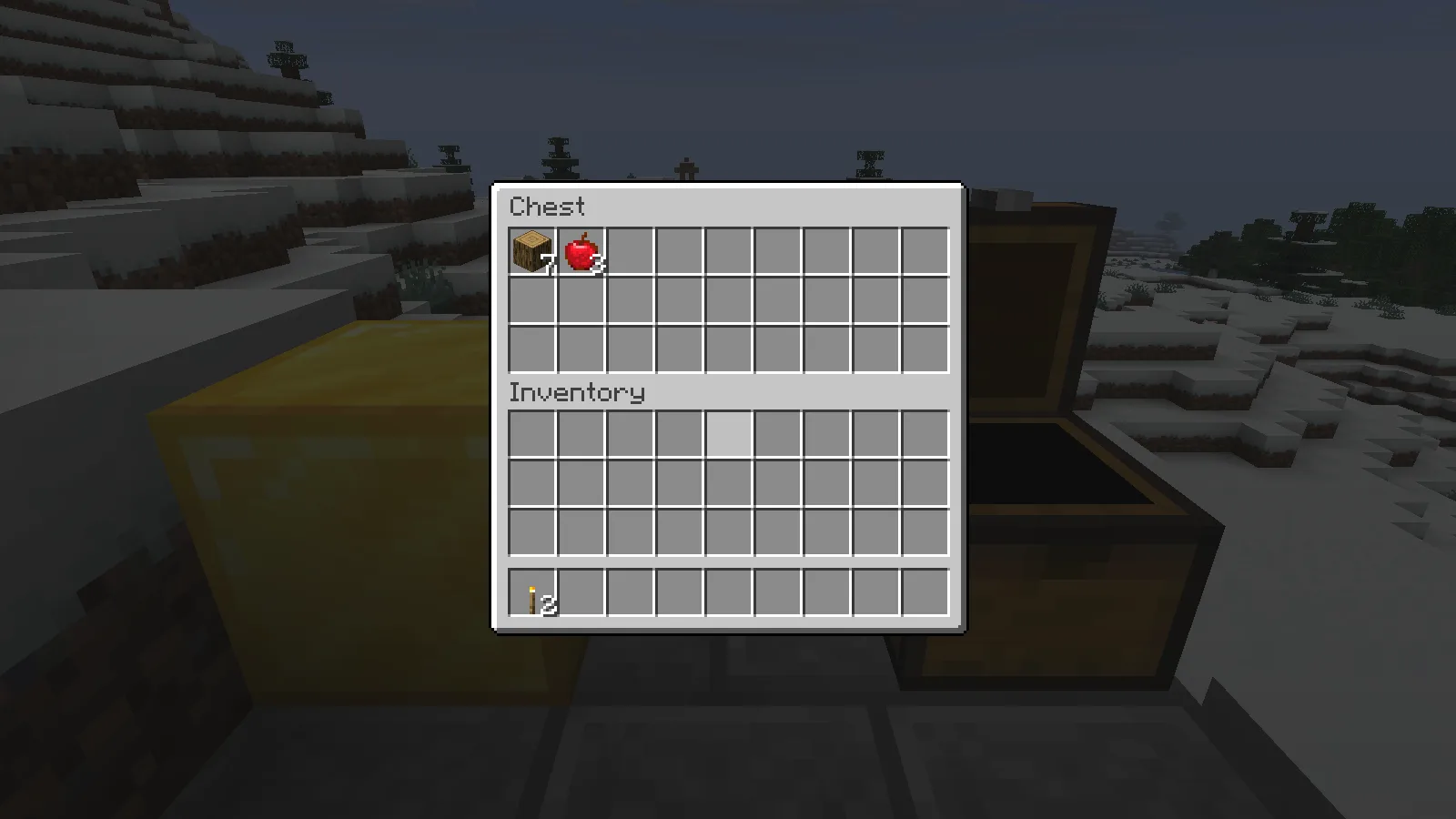
Before the backup, this example chest holds seven oak logs and three apples; two torches are in the player inventory.
Before backing up, note a familiar build, a storage chest and something in your inventory. After restoration, revisit those same details. Our small Creative example uses a gold marker beside a chest; the restored copy kept the marker, chest contents and carried torches.
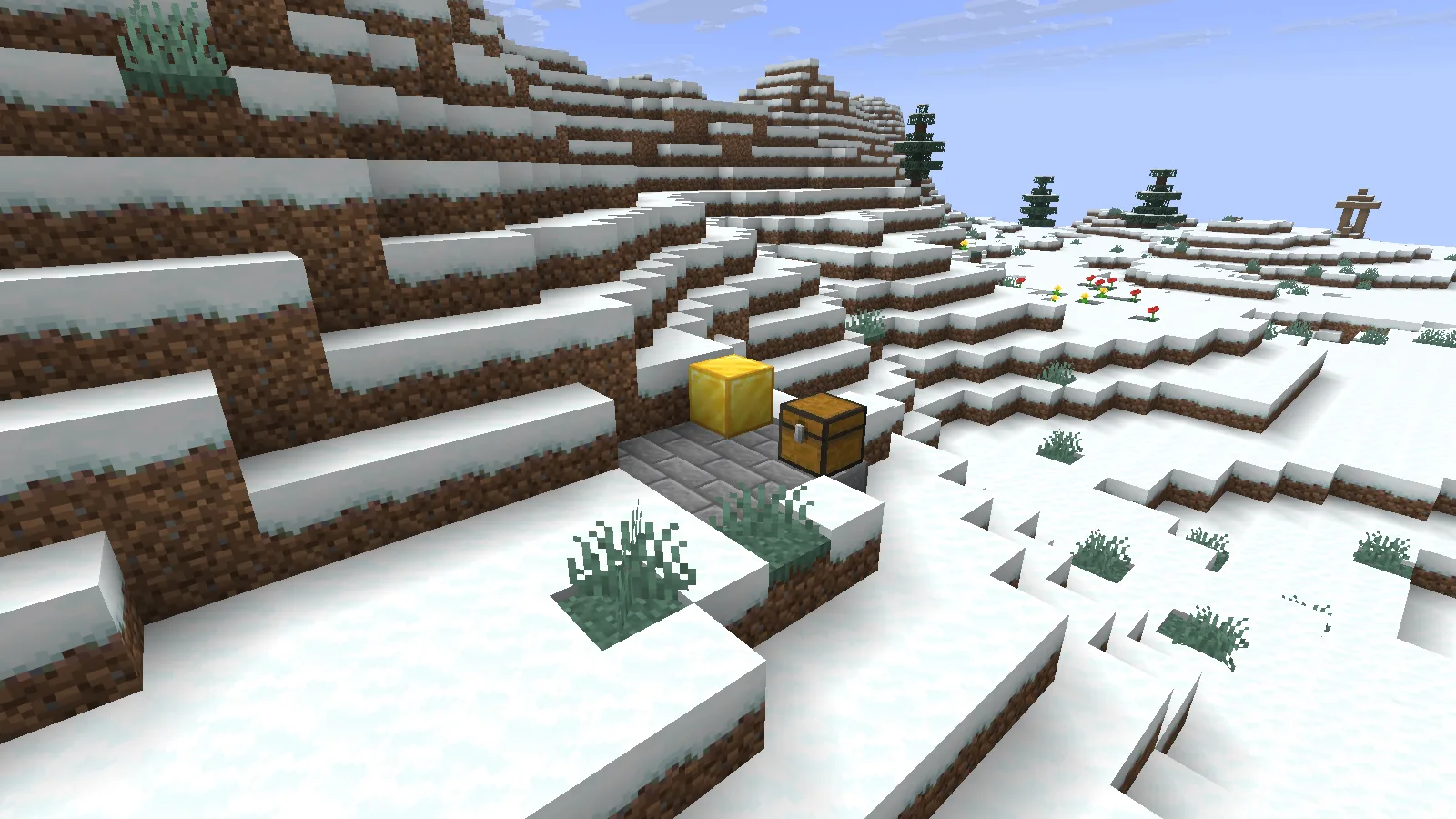
The separately restored world opens with the same gold marker, stone-brick pad and chest on the snowy hillside.
For a developed modded save, also visit important machines and added dimensions. Keep the original setup until those checks are satisfactory. If the update goes wrong, restore the preserved backup into its matching setup; opening an upgraded world in an older game version is not a substitute for restoring it.
Comments & questions
Share what worked, ask for help or reply to another player.
No comments yet. Share what worked for you.