
Default Dark Mode changes the large interface panels you see while sorting supplies and crafting. The chest and crafting layouts remain familiar, but their light backgrounds become dark gray. It is a visual preference you can judge with the screens you open most often.
Start with a chest
Open a chest after selecting the pack. The panel, empty slots and inventory area use darker backgrounds, while the item icons and labels remain visible. In this example, the diamond and iron stacks stand out against the dark slots.
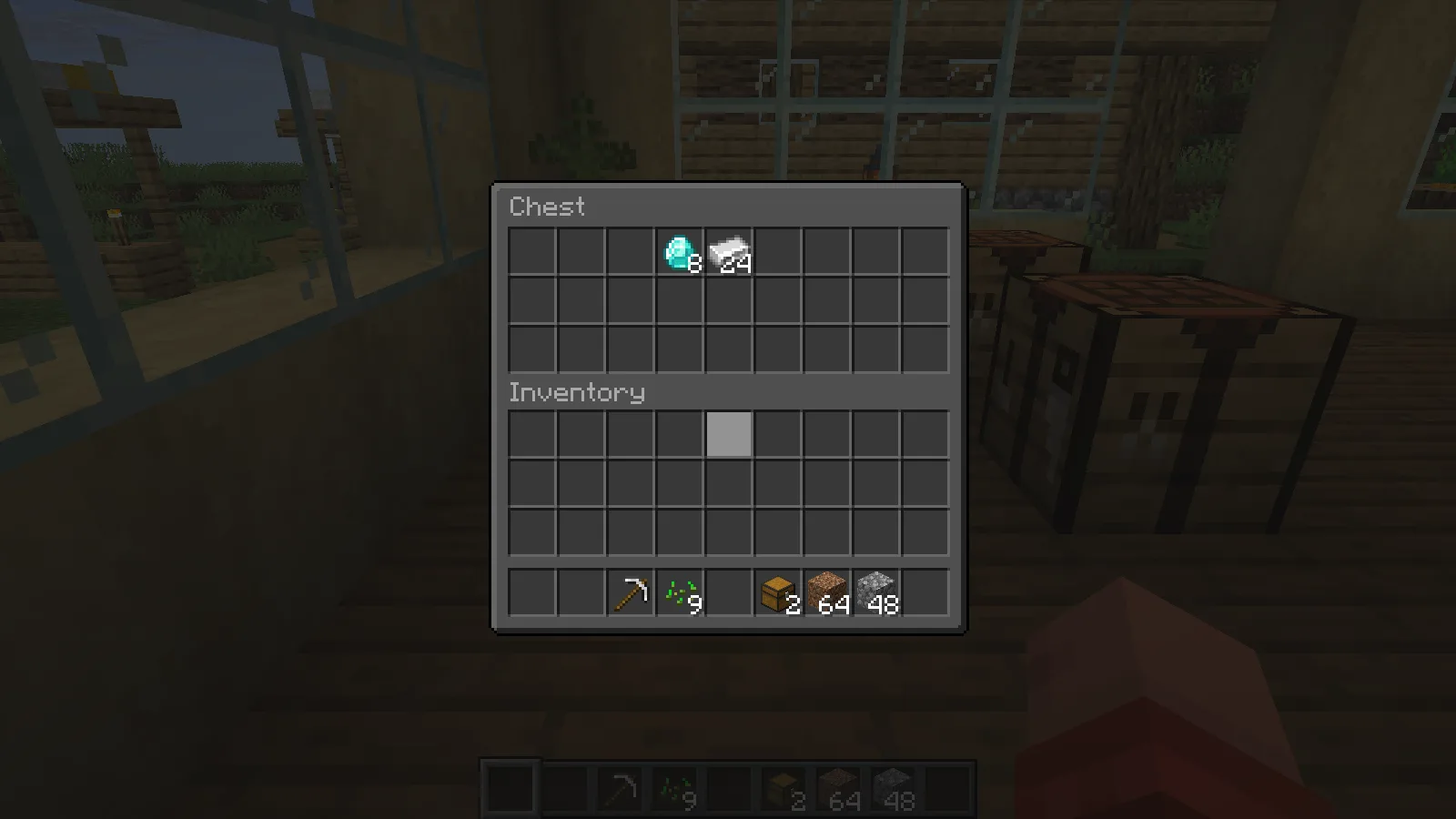
Move the pointer across a few items and check the highlighted slot and tooltip at your normal GUI scale. Those details matter more during everyday use than the appearance of an empty menu. If text or borders are difficult to distinguish on your display, choose the interface that is easiest for you to read.
Open the crafting table too
The crafting screen uses the same darker treatment. Its three-by-three grid, recipe-book button and output slot stay in their usual places, so learning a new arrangement is not part of the change.
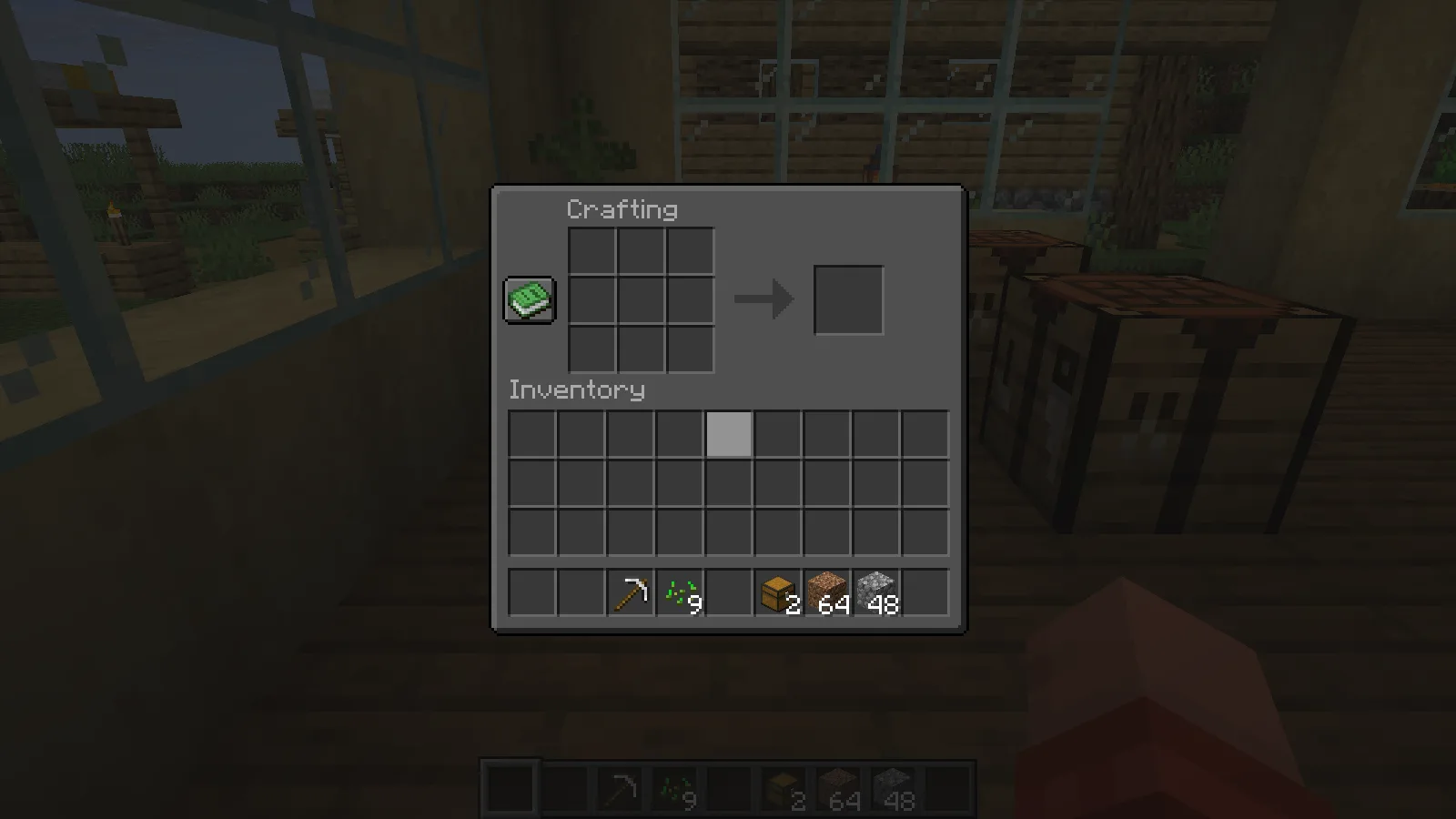
This is useful when you want to change the menus without replacing the workshop's block palette. Check both storage and crafting before leaving the pack enabled, especially if you normally use a different GUI scale from the one shown here.
Select the matching pack
Keep the resource-pack ZIP intact and place it in the resourcepacks folder. Open Options → Resource Packs, move it to the selected side and choose Done. Keep it above another pack if you want its interface textures to take priority.
If a particular menu stays light, check for a higher-priority pack replacing that screen. Modded interfaces can use their own textures, so the appearance of these vanilla screens does not guarantee that every mod menu will change.
Comments 0
Share what worked, ask for help or reply to another player.
Use your Modonix account to join the discussion and manage your comments.
Sign in to commentNo comments yet. Share what worked for you.