
A shared build gets easier to discuss when the person beside you can simply say which wall needs moving. Simple Voice Chat adds conversations tied to your surroundings: nearby teammates can talk while they work, and the server controls how far ordinary voice carries. Groups offer another way to stay in contact when your team splits between a mine, a farm, and the main base.
Choose the conversation mode for the job. Proximity suits a workshop where people come and go. A group suits a team that still needs to coordinate after walking apart. Neither requires you to keep typing every short instruction into chat.
Install the matching client file
The file here is Simple Voice Chat 2.6.22 for Minecraft Java 26.2 with Fabric. Match both the Minecraft version and the loader when choosing a download; a Fabric JAR belongs in a Fabric instance.
- Close that Minecraft instance.
- Open its game directory and find the
modsfolder. Create the folder if necessary. - Put the original Simple Voice Chat JAR inside it, then launch that same Fabric instance.
- Join a server that also has a compatible Simple Voice Chat server component.
The client mod alone cannot add voice to an arbitrary server. A server-side plugin also does not replace the mod on your computer. When friends already use voice successfully, start by checking that you launched the correct instance and selected the matching file.
Choose how you want to speak
Press V to open the voice menu and follow its setup prompts. Select your microphone and the output device you actually use. Headphones are a useful choice when you want to keep other players' voices out of your microphone.
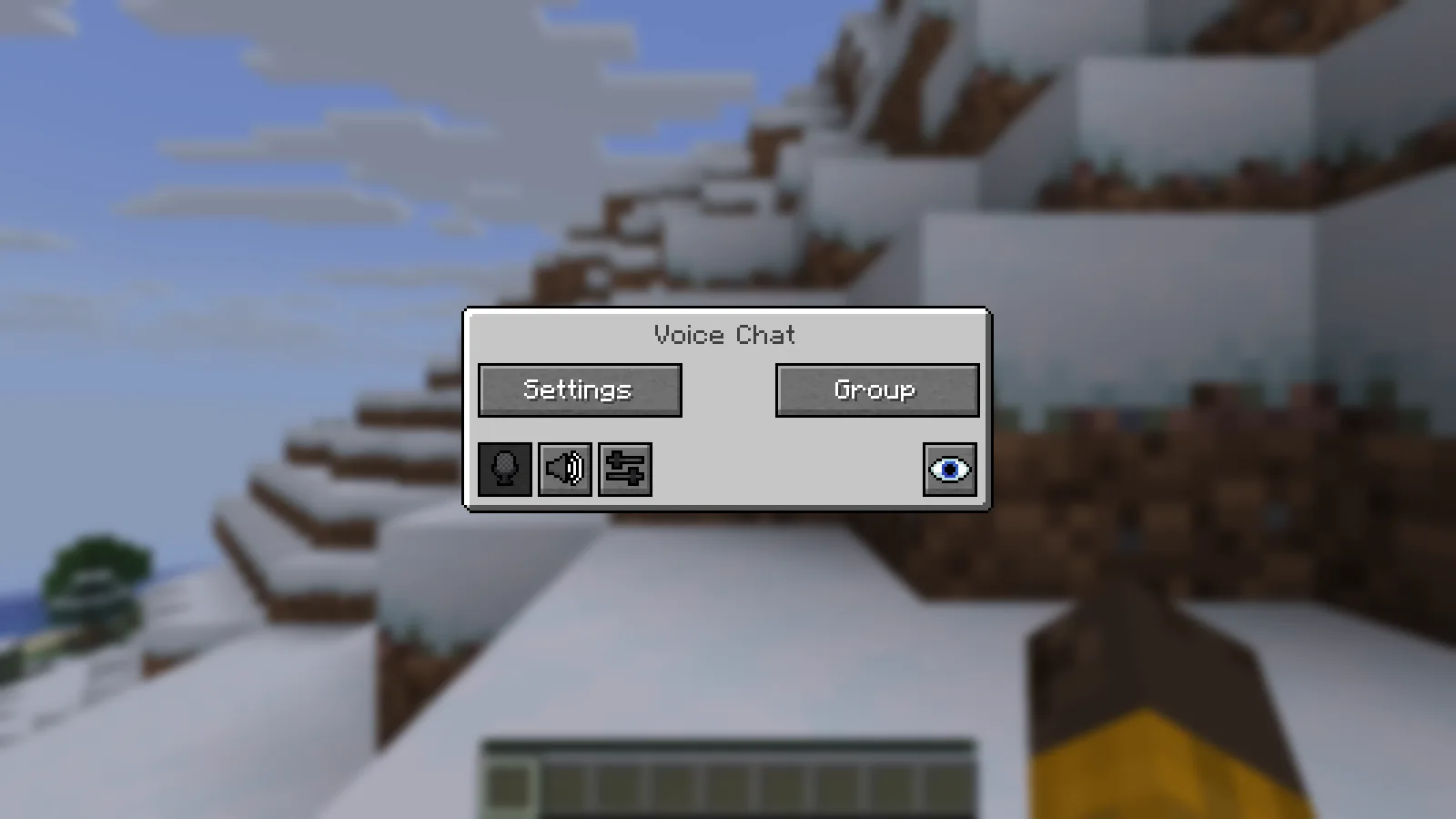
The Voice Chat menu brings Settings, Group, and the quick voice controls together.
For push to talk, choose a comfortable key during setup. The key is not assigned automatically, so check the binding before assuming that holding a familiar key will transmit. Pick something that does not compete with movement, inventory, or another mod.
Voice activation is the alternative: it uses your input level to decide when to transmit. Adjust its threshold with your usual speaking voice and the normal background sound in the room. If you prefer deliberate control over when you speak, return to push to talk.
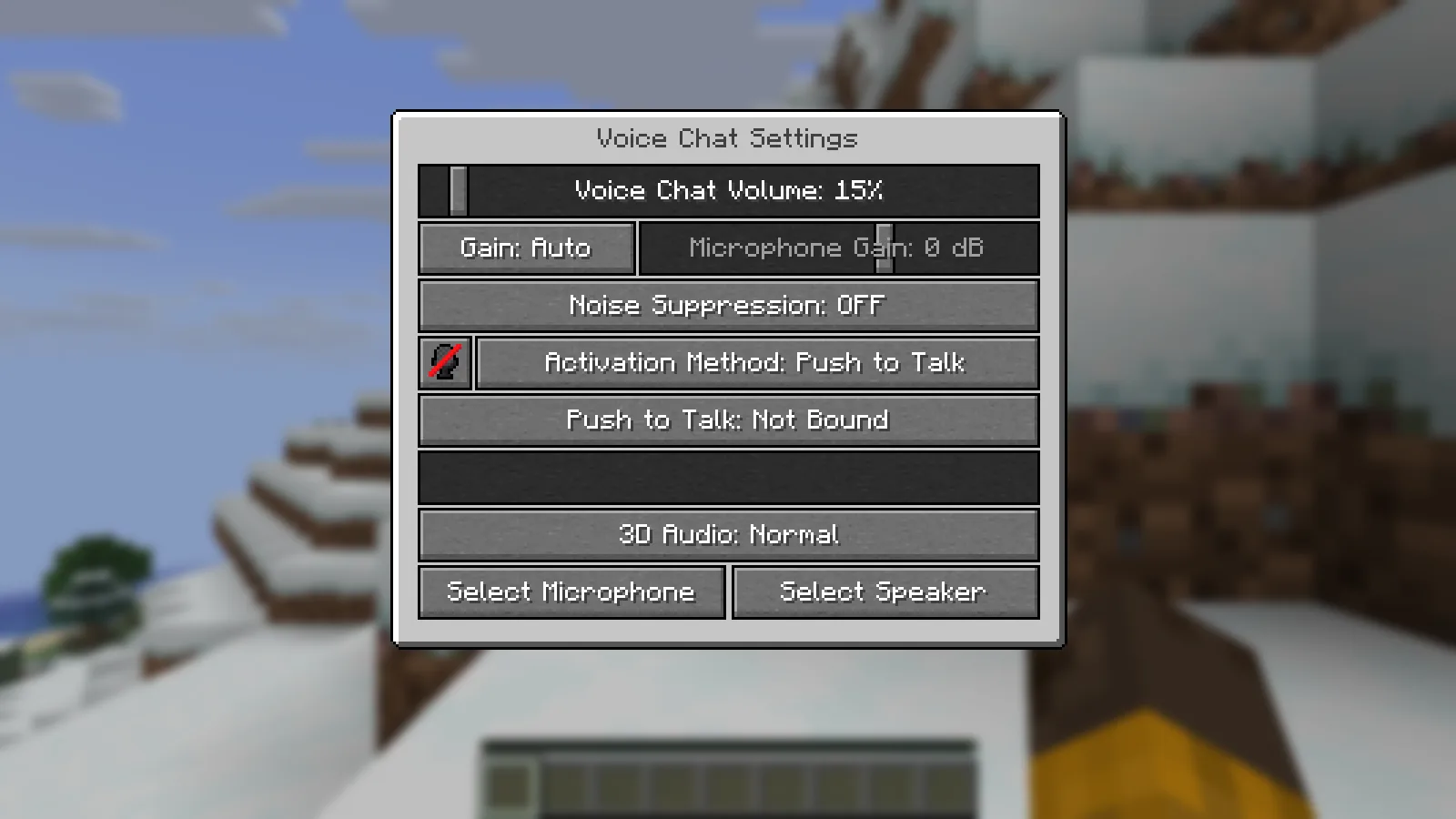
Push to Talk is selected here, and its key still reads Not Bound. Assign a key before using it for ordinary play.
Keep a busy workshop comfortable
Use the voice menu to adjust individual players' volume when one teammate is much louder than another. Check that the intended microphone and speaker are still selected after changing headsets.
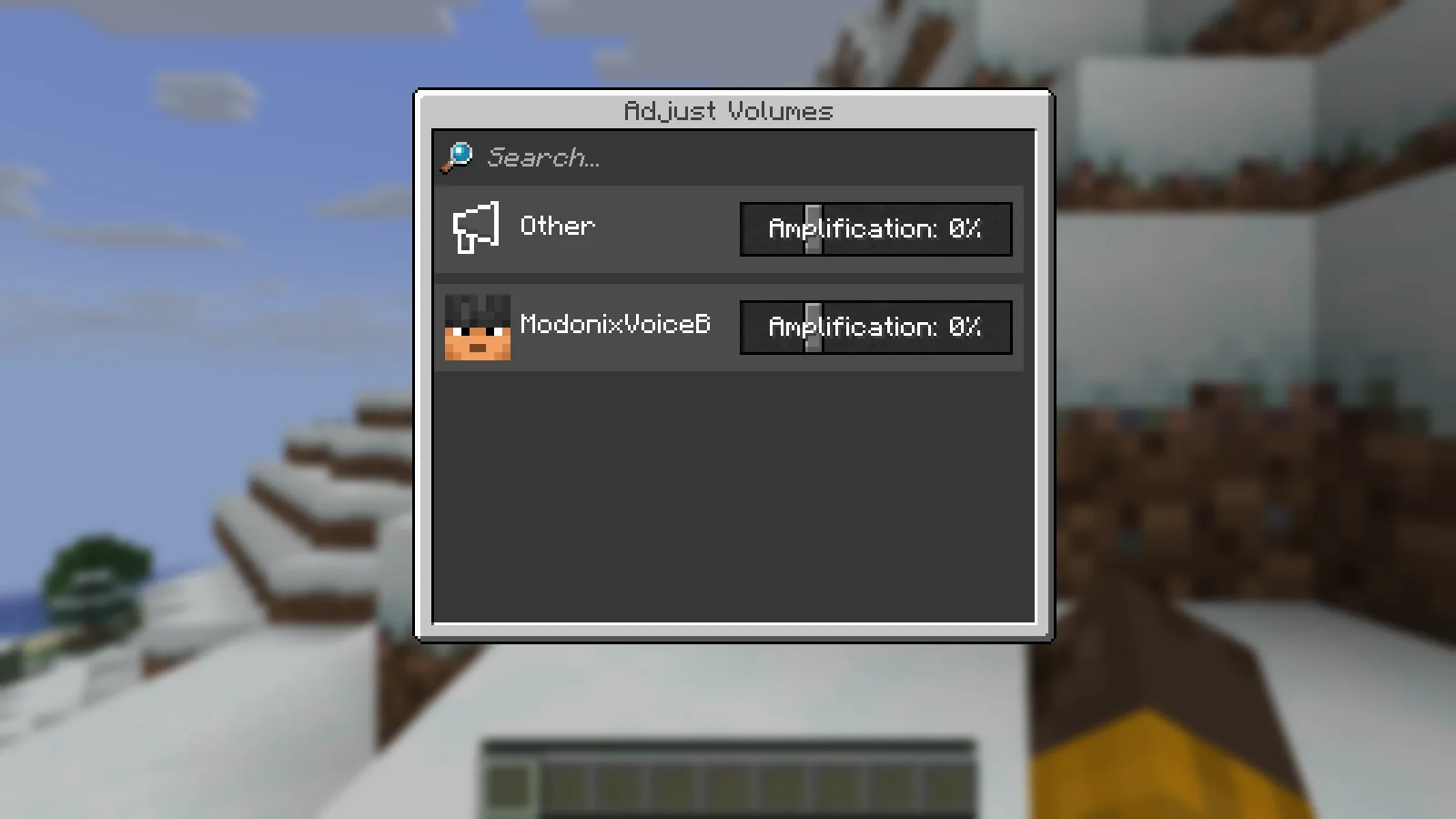
The Adjust Volumes screen gives the second local client its own amplification control.
The default N binding disables both sending and receiving voice. M mutes the microphone in voice-activation mode; it is not the same as disabling the whole voice system. Minecraft's key-binding settings let you change these controls.
Stay together when the work spreads out
Open the voice menu with V, then use its group button. Create a named group and have your teammates join it, or join the group your team already uses. The group interface and member display help you see who is participating.
On this Minecraft version, the separate Group Chats shortcut has no default key. Use the menu route or assign a binding yourself. Group conversation can reach members beyond ordinary proximity, making it useful when one player gathers stone while another lays out the build.
When voice will not connect
If you can play on the server but voice remains disconnected, check the voice status and ask the server owner to inspect the voice connection. Minecraft gameplay and the mod's voice traffic use separate connections, so one working does not establish the other.
For administrators, the author's diagnostic is /voicechat test <PLAYERNAME>. Check the configured voice UDP port and hosting setup rather than treating a generic web port-check result as proof. Once voice connects, return to the device and activation settings if speaking still produces no sound.
Comments & questions
Share what worked, ask for help or reply to another player.
No comments yet. Share what worked for you.