
FerriteCore works quietly in the background to reduce Minecraft's memory use. You keep your familiar blocks, recipes and world. There is no new tool to craft or menu of visual effects to switch on.
That makes it an interesting addition to a modded setup, especially one with lots of different blocks. It is also easy to misunderstand: installing it is not a promise of a particular frame rate, and it does not turn a demanding shader into a lightweight one.
Your world still looks like your world
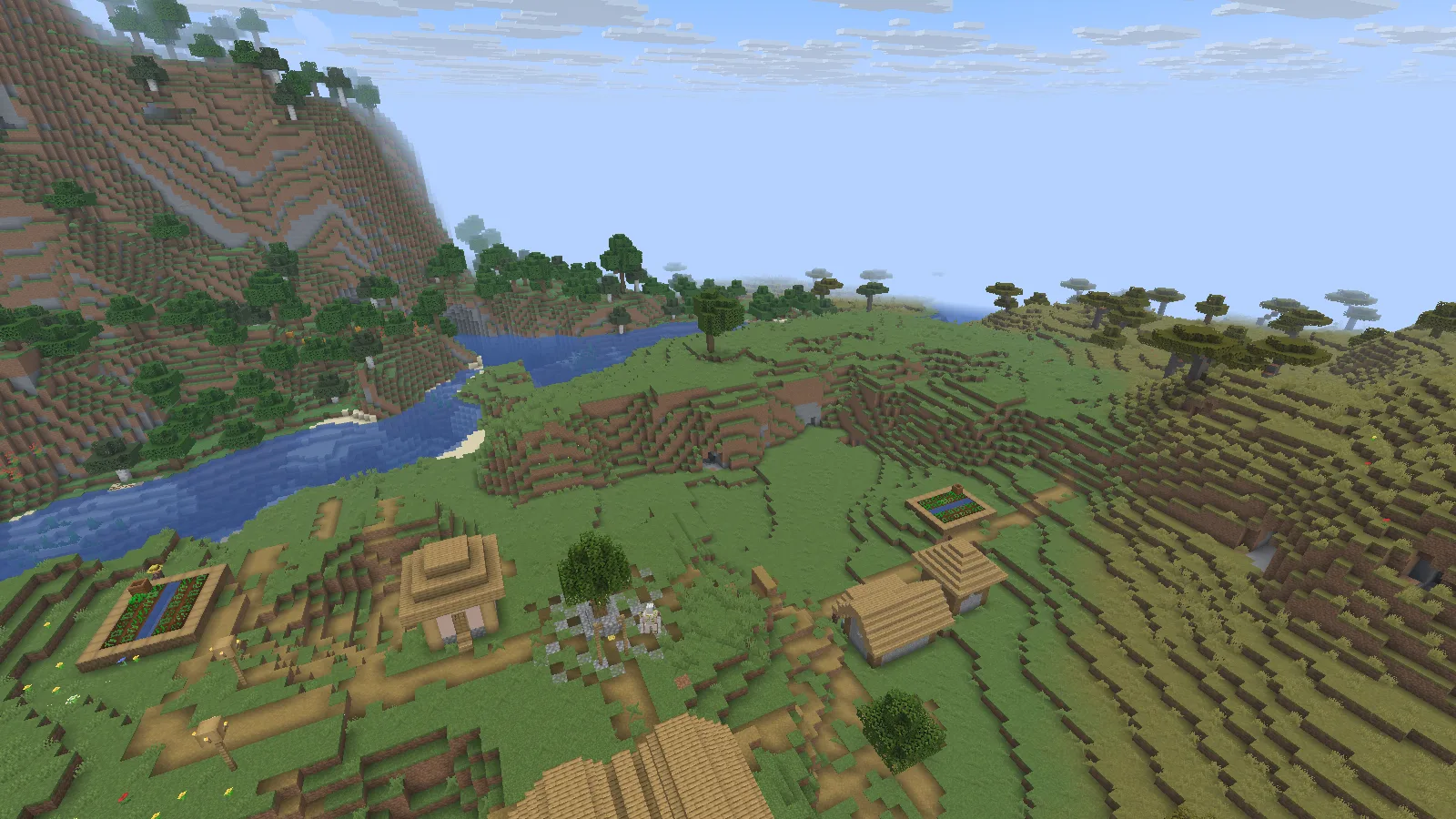
The familiar landscape remains unchanged; FerriteCore works in the background.
We opened this village and river landscape with FerriteCore 9.0.0 for Fabric on Java 26.2. The mod does not add the village, alter the terrain or supply new textures. The useful change is behind the scenes, so a spectacular before-and-after landscape would tell you very little about whether it is doing its job.
Use FerriteCore when you want to keep the gameplay you already chose while reducing the memory it needs. If your main complaint is a slow camera when shaders are on, start with shader quality and render distance as well. Different kinds of slowdown need different fixes.
Choose the file for the game you actually play
Open Files and match both Minecraft version and mod loader. Fabric, Forge and NeoForge builds are separate downloads; a newer release number does not make a file suitable for an older game.
For example, our 26.2 session uses the Fabric 9.0.0 file. The archive also contains files for older setups. If your favorite modpack is still on 1.20.1, stay with its compatible file rather than updating the whole pack just to follow this screenshot.
Already using a modpack? Check its mod list first. If FerriteCore is included, do not add a second copy.
Add it to the right instance
- Close the game and open the folder for the installation or modpack you intend to use.
- Place the compatible FerriteCore JAR in that installation's mods folder. Leave the file intact.
- Remove the older FerriteCore JAR from that same folder when replacing it.
- Start the matching loader profile and open a small world first.
Our Fabric installation guide shows how to avoid putting a mod in one instance and launching another.
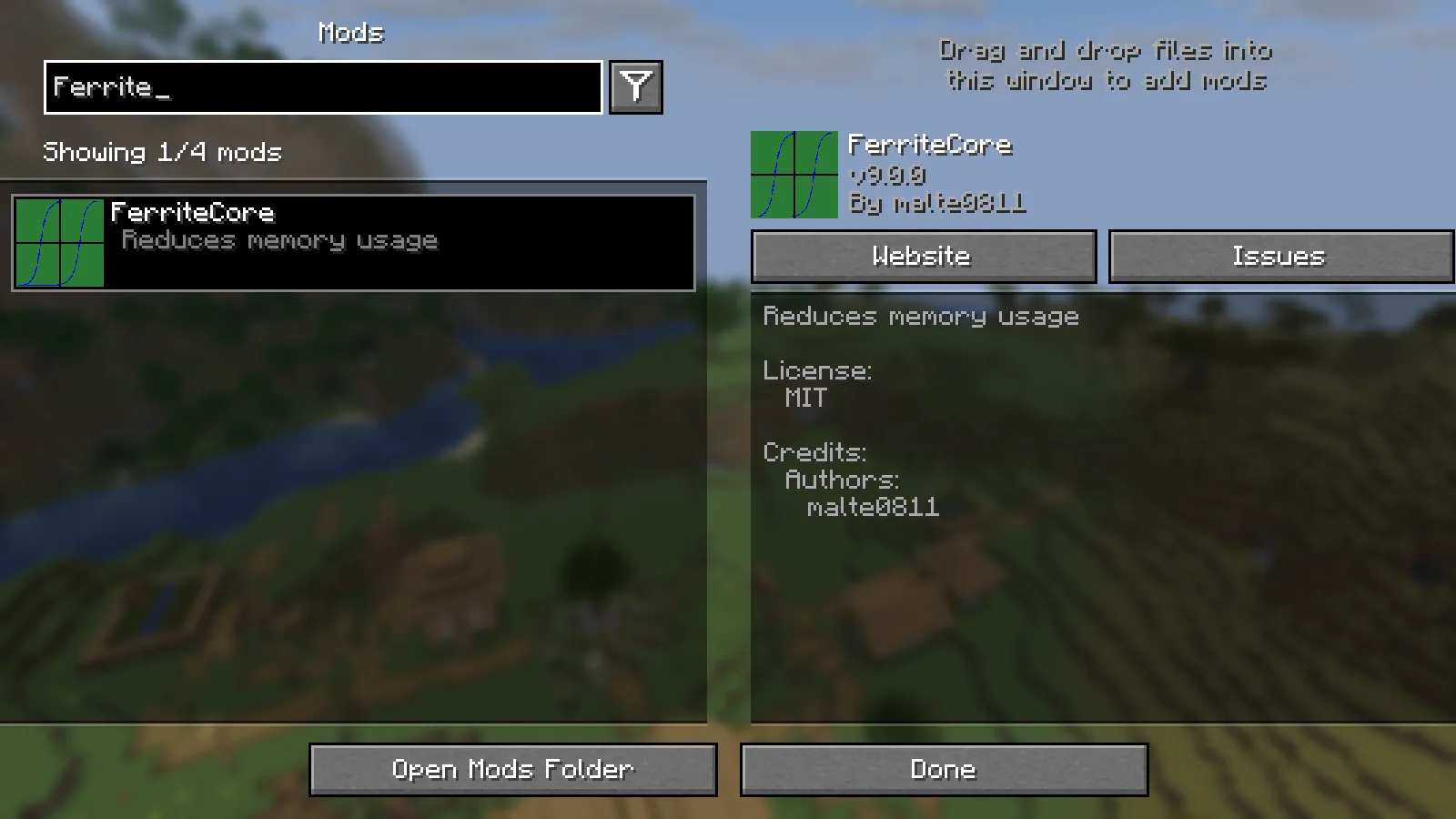
Search the loaded mod list to confirm the release in this instance.
With Mod Menu installed, searching for FerriteCore brings up the loaded release, as shown here. Mod Menu is a convenient way to check; it is not required for FerriteCore to work. The absence of a new in-game item is normal.
A sensible way to judge the result
Return to a place you know well: your storage room, the busy center of a base, or a route you often travel. Keep the rest of the modpack and video settings unchanged. Give the world time to load before comparing anything.
If you watch Minecraft's memory display, expect the number to rise and fall during play. A single low reading immediately after opening a menu is not a useful promise of how the whole session will feel. Resist the temptation to assign all your computer's memory to the game; other applications still need room too.
When something goes wrong
- Fabric reports the wrong game version or loader: replace the file with one matching this instance. Renaming a JAR cannot change its compatibility.
- Minecraft reports a duplicate mod: keep one FerriteCore release in the active mods folder.
- You cannot find it in the mod list: confirm that you launched the same instance whose folder you edited.
- The game still stutters: check whether the delay happens while generating terrain, using a shader, or running a busy farm. FerriteCore addresses memory use; it does not solve every source of lag.
FerriteCore is by malte0811. Modonix wrote this guide and captured the game images. Use the file filters below to keep your existing Minecraft setup intact.
Comments & questions
Share what worked, ask for help or reply to another player.
No comments yet. Share what worked for you.