

Fabulously Optimized is for players who want a prepared Java setup with performance and visual-quality features while keeping familiar Minecraft gameplay. You do not begin with a quest book, a new technology tree or hundreds of unfamiliar recipes. You begin with Minecraft, then decide how far to adjust its appearance.
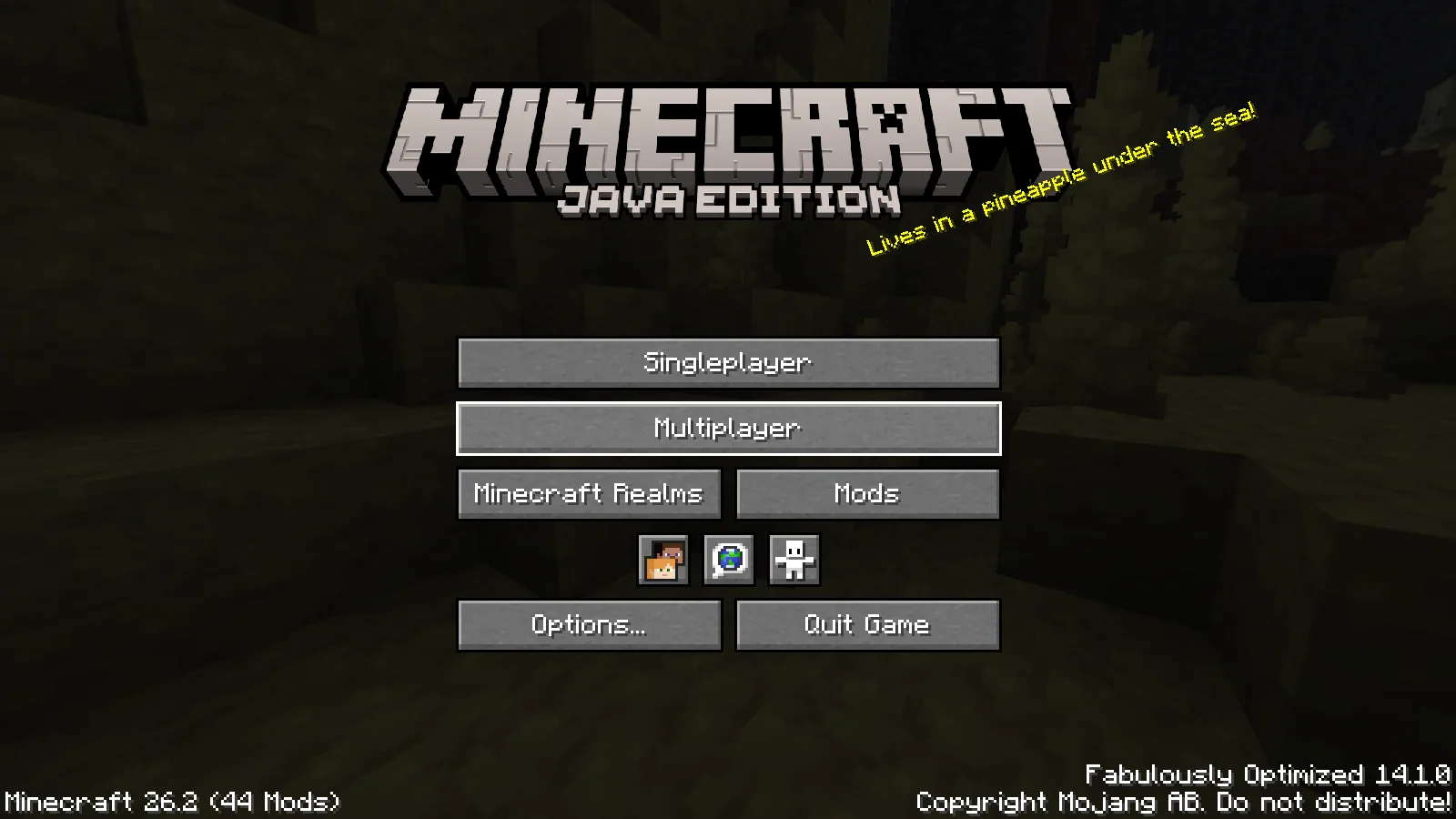
The title screen identifies the pack and game version before you open a world.
This is Fabulously Optimized 14.1.0 on Java 26.2. Treat the pack as a complete installation: its included mods and settings are chosen to work together. Dropping the download into another modpack's mods folder is not how you install it.
Start with the world you recognize
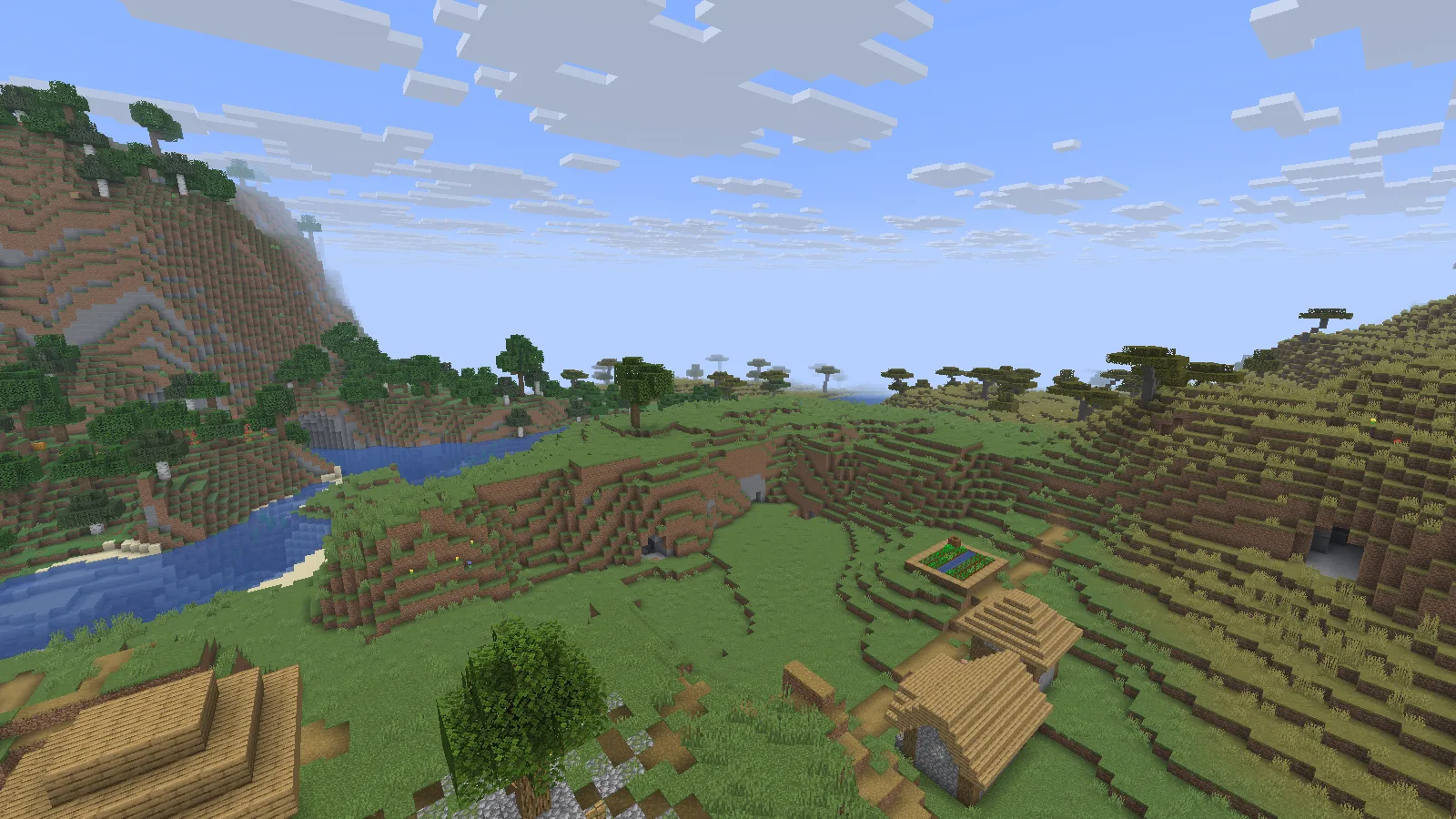
Start with familiar Minecraft scenery, then add visual extras if you want them.
Our village keeps its ordinary Minecraft blocks, trees and river. There is no shader enabled in this view. This is a useful starting point: get comfortable with the pack before adding visual extras, so you can tell which change affects how the game looks or feels.
We also joined a separate local Paper server with this client. The server did not need the pack's client mods. For a public server, check its rules about client features before joining; permission to use a feature is a server decision.
Install the downloaded pack
The file in Files is an MRPACK. Import it with a launcher that supports that format. For example, in Prism Launcher choose Add Instance → Import, select the downloaded file and let the launcher finish fetching the pack's required files. You still need your own Minecraft Java account to play normally.
Give the instance a name that includes the game version. Keep your older setup alongside it until you are happy with the new one. The pack archive describes the installation; it is not a standalone game or a single mod JAR.
Before moving a valuable world, make a separate backup. Copy the world into the new instance instead of moving your only save. Opening an old save in a newer Minecraft version can update it, so retain the untouched copy for the older version.
Three settings worth looking at first
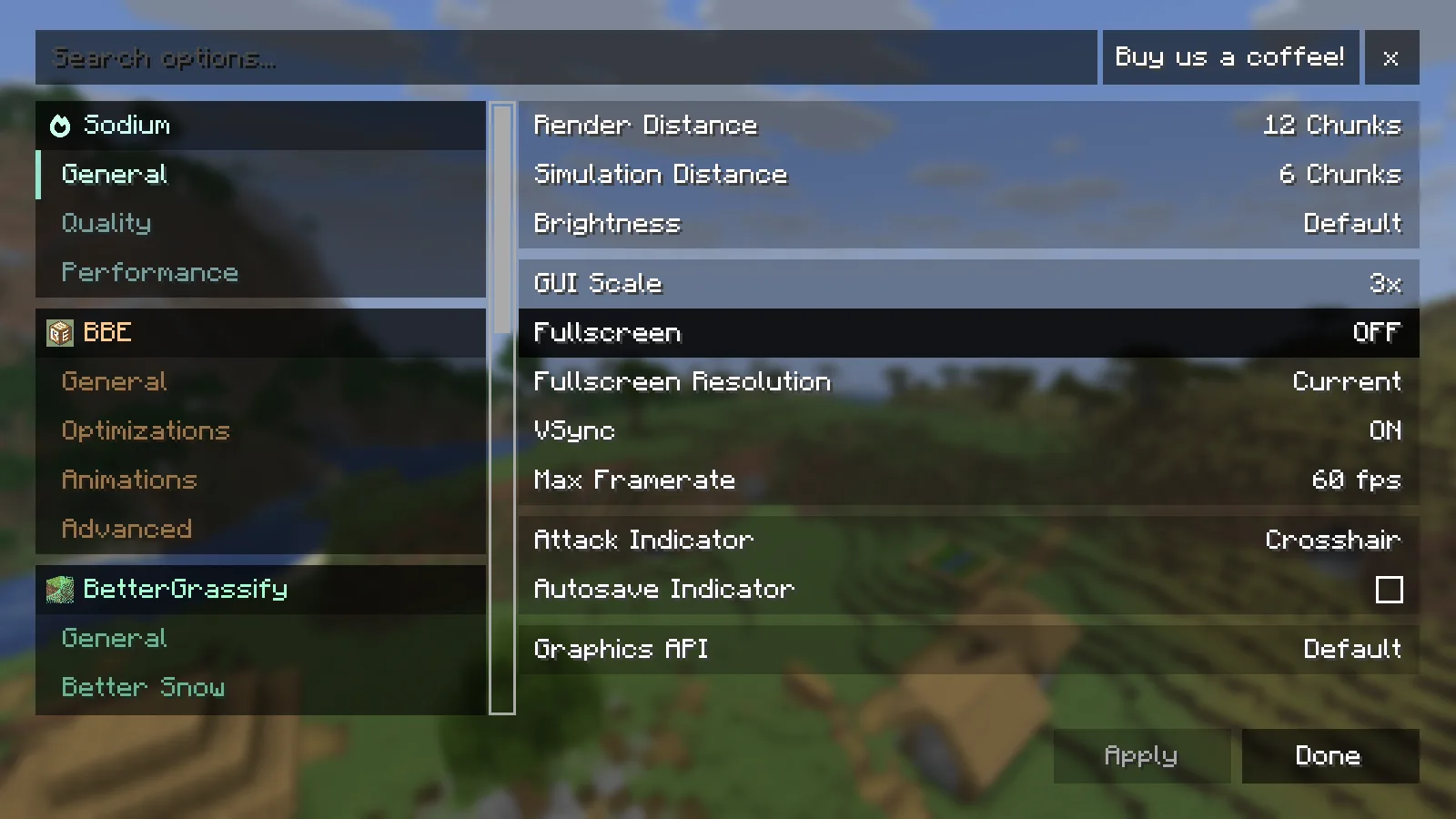
Adjust one setting, then return to the same place in your world.
In the video menu, start with changes you can recognize while playing:
- Render Distance: how far you see. A shorter distance can be a better trade than keeping a huge horizon that makes movement uncomfortable.
- Simulation Distance: how far the world remains active around you. Changing it affects more than the scenery, so consider nearby farms and mobs.
- Frame-rate limit: choose a comfortable target instead of asking the computer to render as many frames as possible all the time.
Change one thing, return to the same scene, and move around for a while. A quiet shoreline and a crowded base can behave differently. Our screenshot shows one setup, not universal settings for every computer.
Want shaders or familiar OptiFine features?
The pack brings together alternatives to many familiar OptiFine features. Do not add OptiFine on top as an extra performance mod. First look at the pack's existing video and resource-pack options.
For a gentle visual change, our Miniature Shader guide shows a river with the shader enabled and disabled from the same position. Try a shader after the ordinary game feels comfortable; reflections and lighting effects add their own workload.
Not every resource pack uses exactly the same feature set. If a pack's custom appearance is missing, check what that resource pack requires before adding more mods at random.
Updating without losing a comfortable setup
Use the file's Minecraft version as your first filter. An older pack can be the right choice when a world or server still uses that version. Keep the existing instance, import the new release separately, and bring across a copy of the world only when its game version matches your plan.
If you customize the pack, note which mods you added. When a new problem appears, return to a clean copy of the pack and add your extras gradually. That is much easier than trying to guess which of several simultaneous changes caused it.
Common first-run problems
- The MRPACK is sitting in mods: import it as a new instance instead.
- The title screen shows another Minecraft version: check which instance you launched.
- The importer still needs downloads: let it finish; the archive does not contain every mod itself.
- Your world is missing: instances have separate saves folders. Check the old instance before creating or replacing anything.
Fabulously Optimized is maintained by robotkoer, Kichura, nick9509 and its contributors. The pack and its component mods retain their own credits and licenses. These screenshots and the accompanying walkthrough are by Modonix.
Comments & questions
Share what worked, ask for help or reply to another player.
No comments yet. Share what worked for you.