

Motschen's Better Leaves makes trees and hedges look fuller while keeping the familiar Minecraft style. The biggest difference is at the edges: a flat wall of leaves gains a leafy outline, and a small tree crown looks less like a stack of squares. You can use it with an existing build without rebuilding the garden.
We made a small demonstration garden with oak, birch, spruce and cherry trees, then switched Better Leaves 9.6 on and off in Java 1.21.1. The before-and-after views use the same blocks, camera positions and daylight. No shaders or mod loader are involved.
What changes in the same garden?
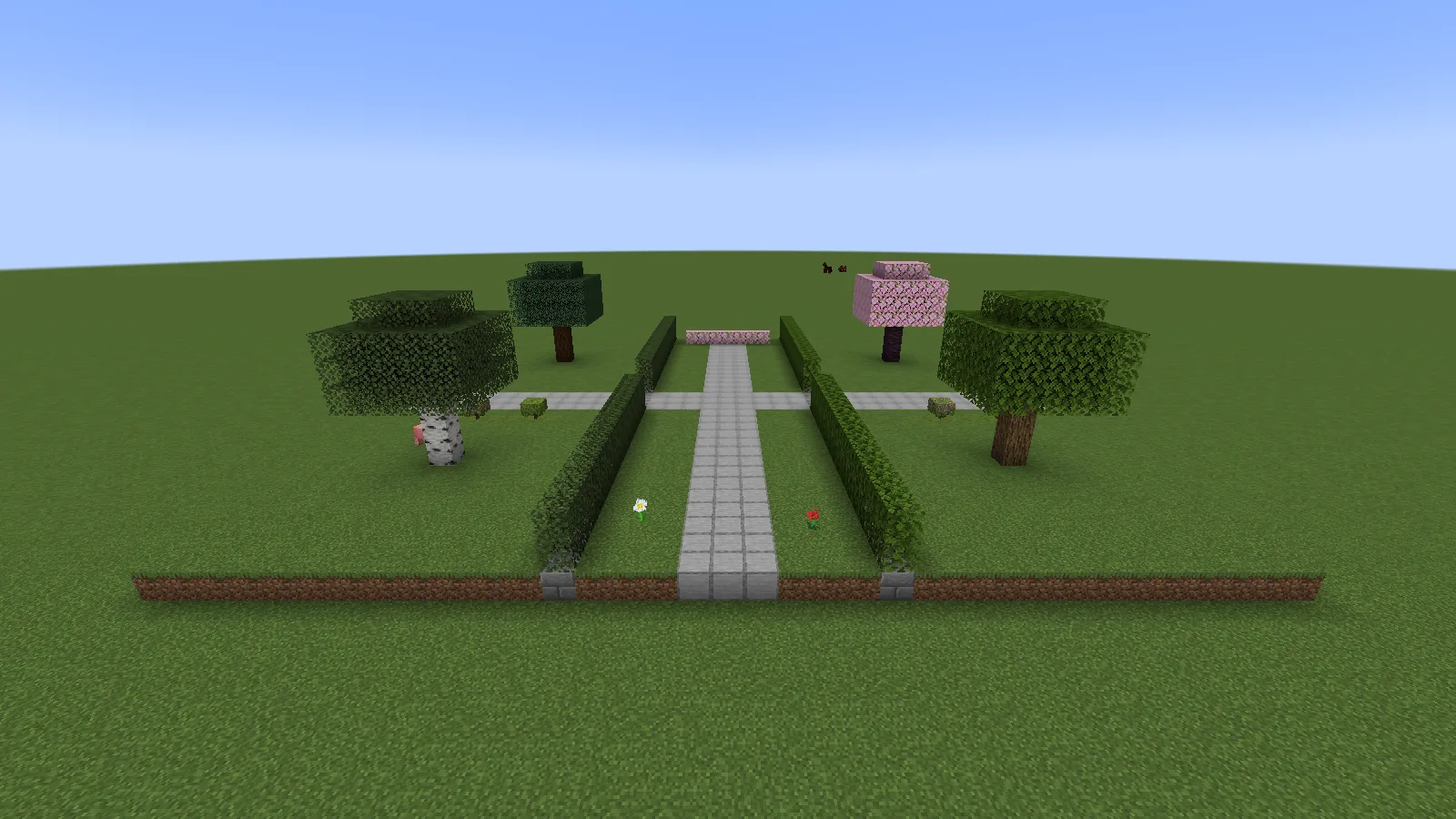
Before: default Minecraft leaves on the same handmade trees and hedges.
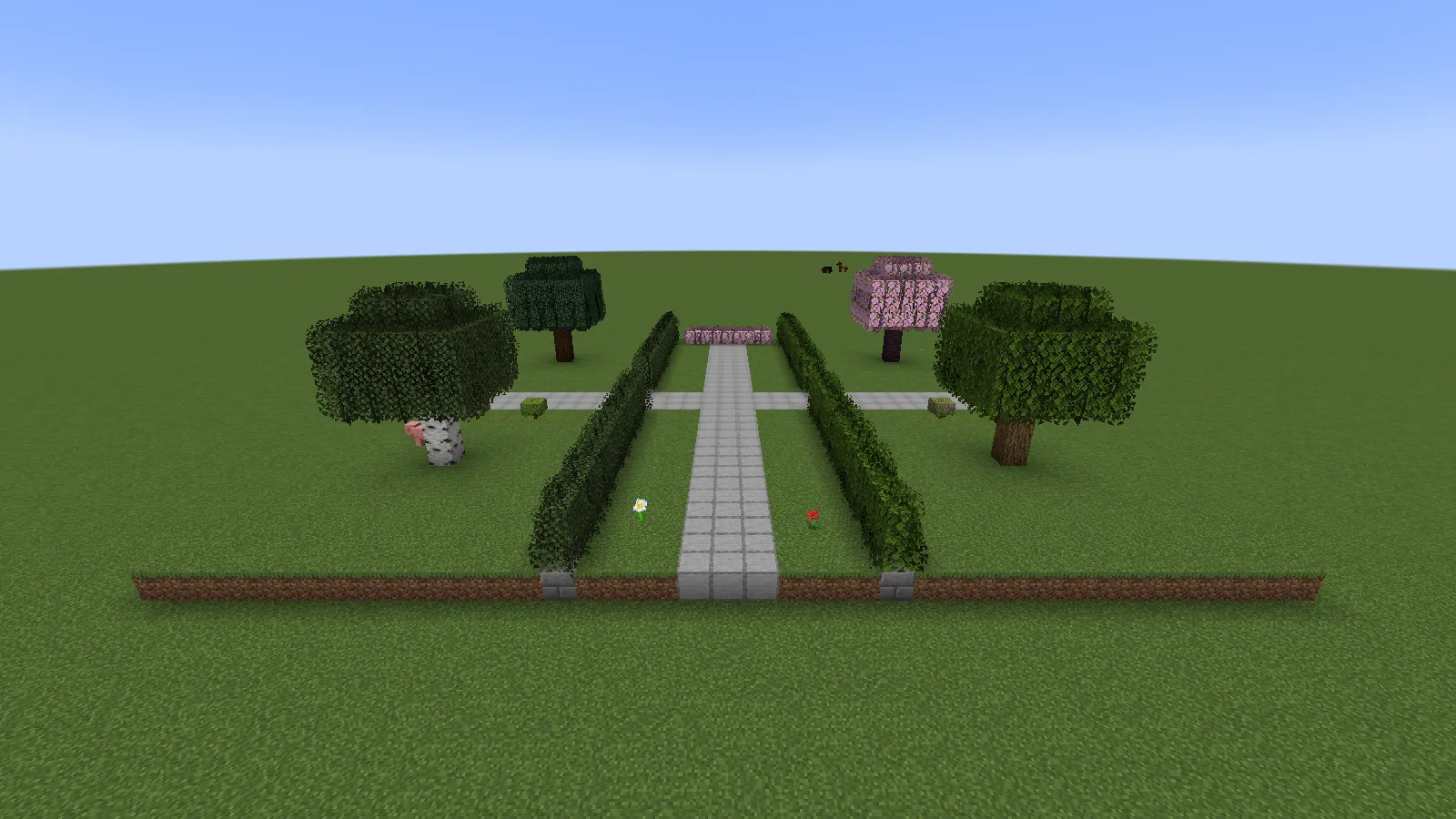
After: Better Leaves 9.6, with the same camera position, lighting and blocks. No shaders.
Look at the outside edges of the two front trees and the tops of the hedges. The block layout is unchanged, but the extra leaf shapes make the outline more irregular. The pale stone path and the tree trunks keep their original appearance.
This is a visual resource pack, so you do not need to grow a new set of trees to see the change. It is especially easy to judge on a familiar build: stand somewhere you often walk, turn the pack on, and look at what happens to the edges around that route.
Hedges: a useful change at walking height
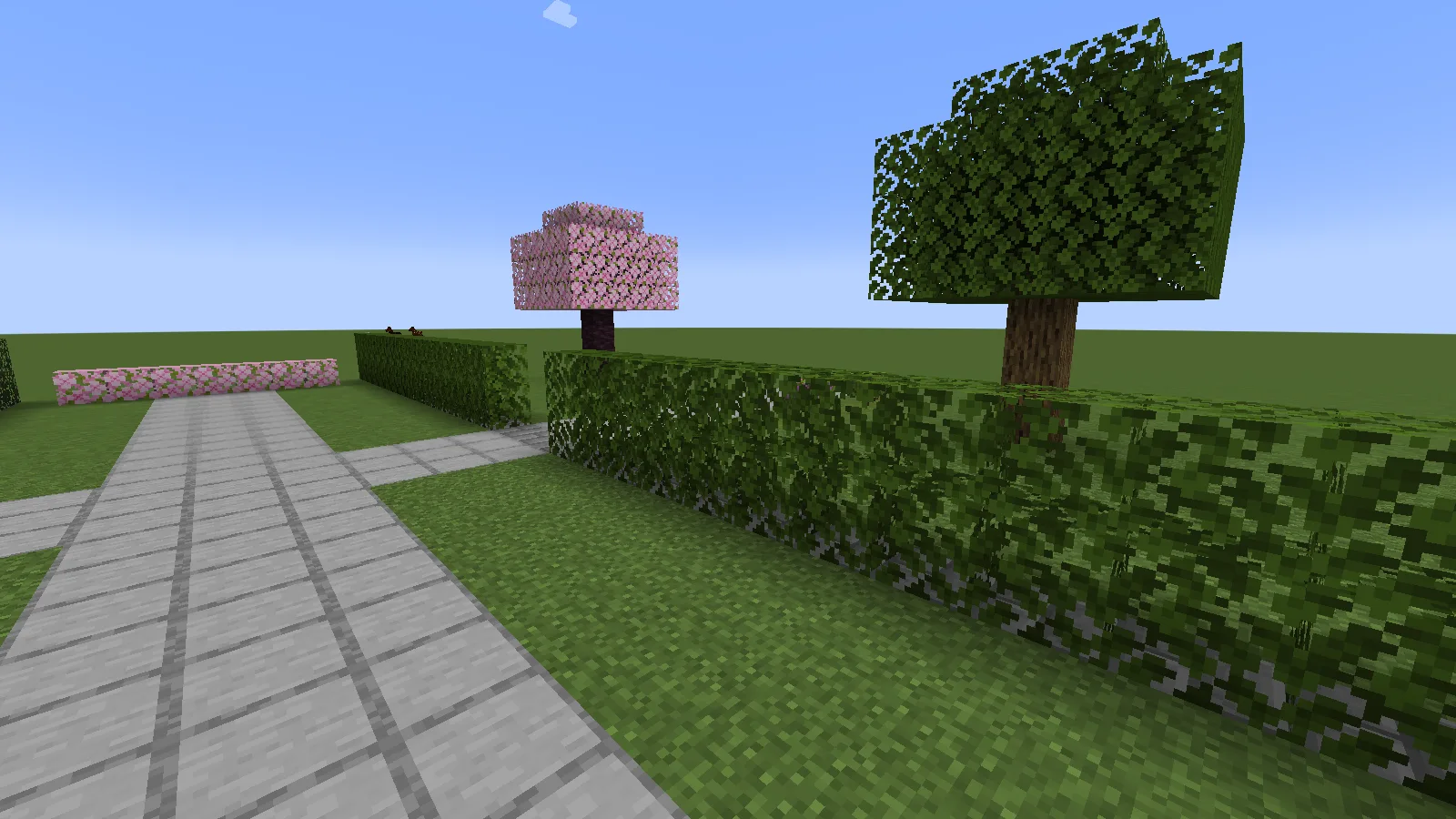
Before: the hedge has a straight upper edge and a clearly squared end.
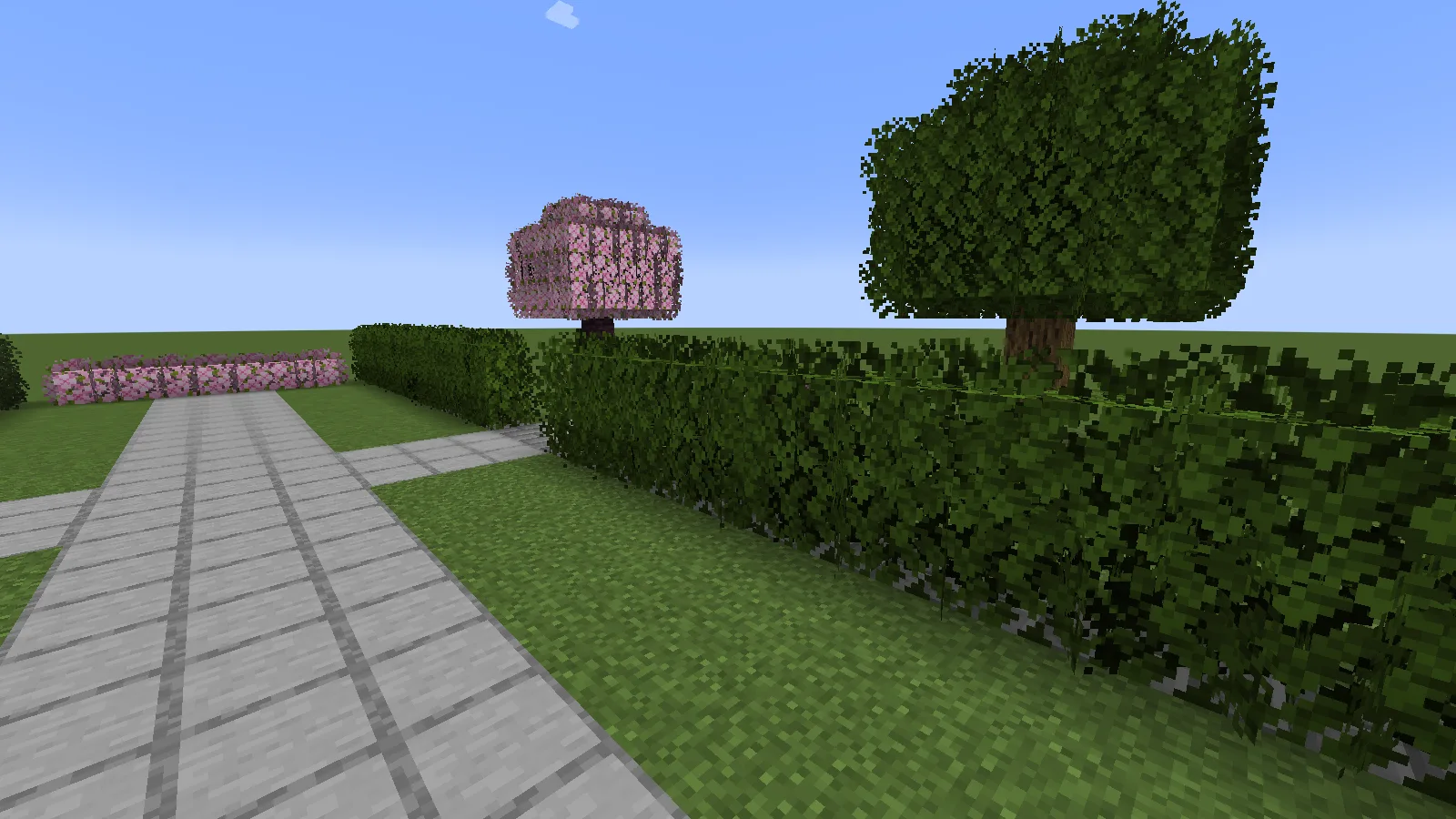
After: the extra leaf edges soften the outline without moving the hedge or the path.
Our straight oak hedge is only one block thick and two blocks high. With the pack enabled, the top and end become softer and less precisely trimmed. That suits a cottage garden or an overgrown path. For a very formal courtyard, you may prefer the crisp default outline.
Notice the strip of grass between the hedge and the stone path. Leaving some breathing room makes the added leaf detail easier to read. When planning a narrow entrance, check it from walking height: the visual outline can look busier even though the underlying blocks have not moved.
Three simple ways to use it in a build
- A path border: start with a short hedge beside a cottage path. Keep a gap at the entrance rather than wrapping leaves around every surface.
- A tree beside a resting spot: place one crown near a bench, pond or path junction. Leave enough open space to see its outline against the sky.
- An overgrown corner: use a few leaf blocks around an old wall, then step back and check that the wall is still readable. More foliage is not always a better composition.
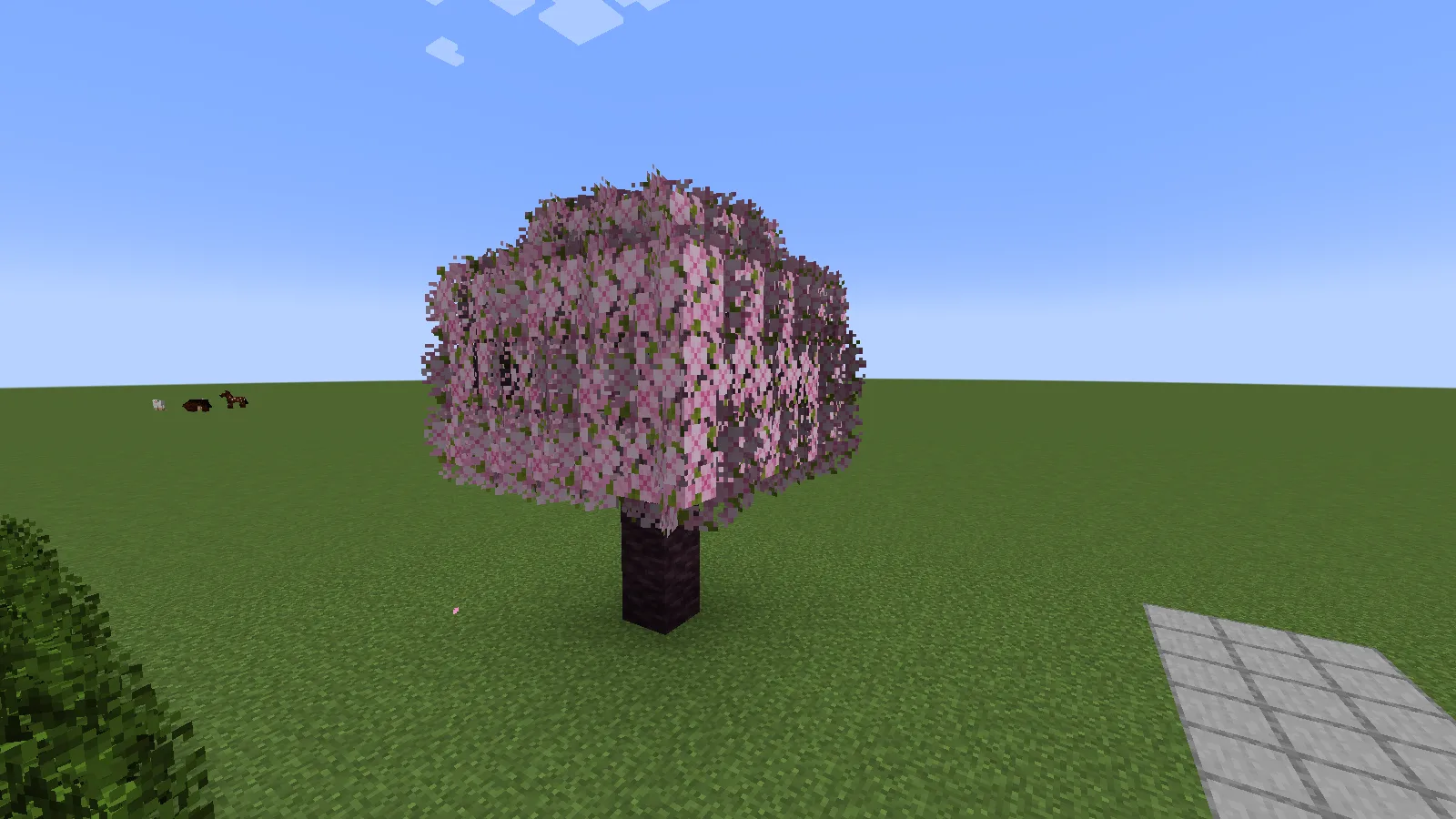
A small cherry tree becomes a useful focal point beside a garden junction.
The cherry tree is a good example of a small focal point. Its pink foliage stands apart from the green hedges, and the uneven edges are visible even on this simple handmade crown. You can borrow the idea for a courtyard without copying our whole garden.
Install Better Leaves in Java Edition
- Open Files, choose your Minecraft version, and download the matching resource-pack ZIP. The examples here use Better-Leaves-9.6.zip.
- In Minecraft, open Options → Resource Packs → Open Pack Folder. This opens the correct folder for the instance you are playing.
- Put the ZIP in that folder without extracting it, then return to Minecraft.
- Move Better Leaves from Available to Selected. With the default textures, it should sit above Default.
- Click Done, wait for the resources to reload, and look at a nearby tree or a few placed leaf blocks.
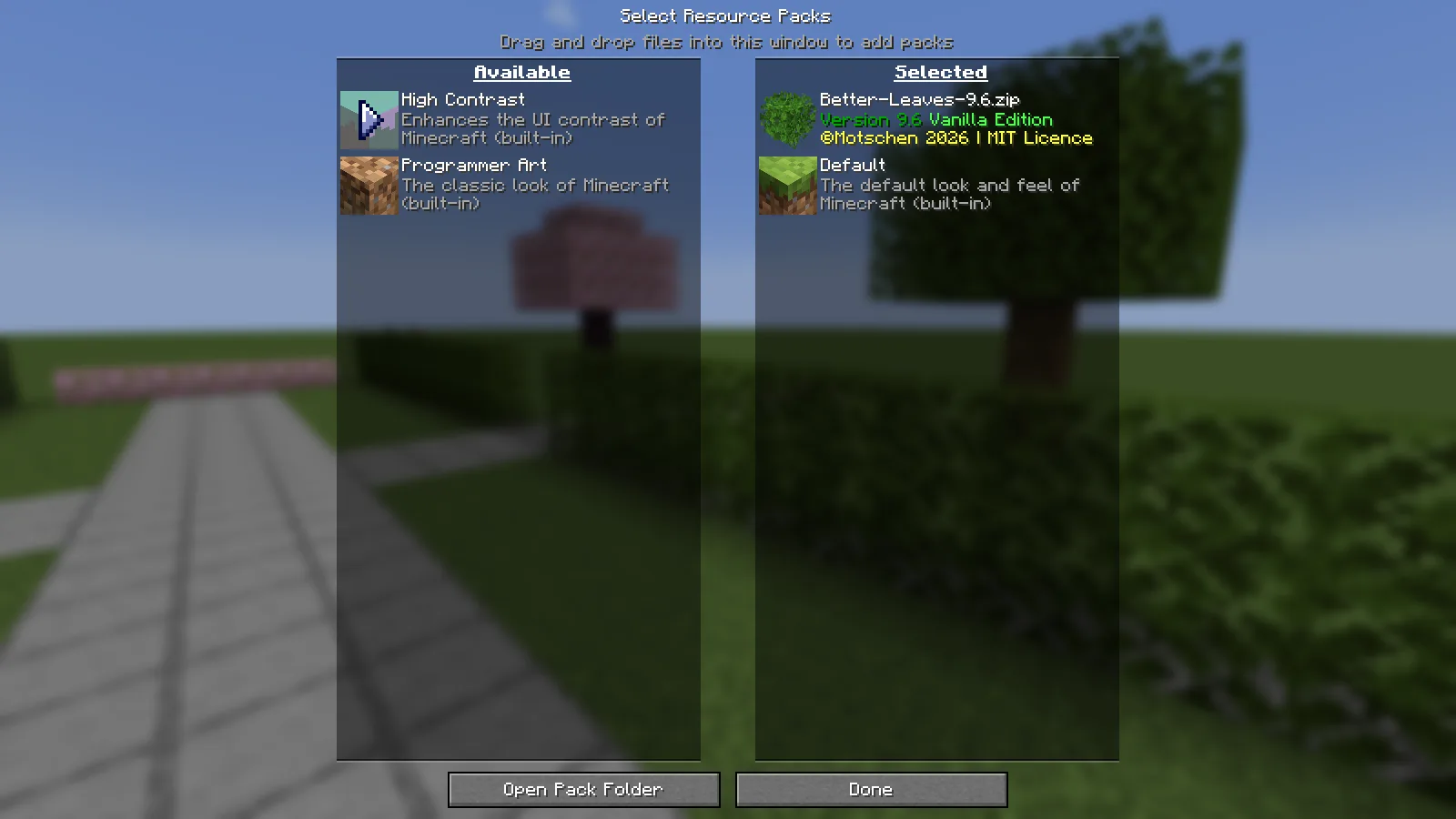
Select the pack, then click Done and let Minecraft finish reloading the textures.
The effect worked in our ordinary Java 1.21.1 instance without OptiFine or a shader pack. You do not put this ZIP in the mods folder or a world's datapacks folder. It changes the resource-pack selection on your client, so you can try it in an existing world.
Try it on one familiar corner first
Choose a path you already use and stand at the same spot for both views. Compare a nearby hedge as well as the distant tree line: the little details you enjoy in a still picture should also feel comfortable when you walk past them. Keep your other graphics settings unchanged while deciding.
For an overgrown build, leave the doorway and important signs clear. For a tidy town square, use foliage as an accent around the edge instead of filling every gap. The pack gives you a different outline; where you place the leaves still does most of the composition work.
Using another texture pack?
The 9.x Vanilla Edition uses its own prepared leaf textures. It does not automatically copy the leaf style from every other texture pack underneath it. Moving it higher in the list can make its own leaves visible, but that does not guarantee a visual match with the rest of your pack.
For a clean first comparison, select only Better Leaves and Default. If that works, add your usual texture pack back and look closely at the leaves again. If you want the other pack's exact leaf style, you need a matching Better Leaves variant; changing the order alone cannot manufacture that variant.
Older releases can behave differently. Choose by the game-version information and the release notes in Files, not by assuming that every older ZIP is the same design with fewer supported versions.
Nothing changed, or the result looks wrong?
- The ZIP is visible but nothing happens: check that it is on the Selected side, then click Done. Being in the folder is only the first step.
- Leaves stay square with several packs enabled: try Better Leaves with Default alone. Another resource pack may be providing the leaf models you are seeing.
- The colors do not match another pack: use the vanilla look or find a variant made for that pack. The 9.x Vanilla Edition is not an automatic texture converter.
- Minecraft shows a version warning: compare the file's listed versions with your game. Do not assume that a newer ZIP is the right choice for an older instance.
- You prefer the old look: move Better Leaves back to Available and click Done. In our garden, this restored the original leaf appearance with the trees and path still in place.
This pack changes how foliage is drawn; it is not a promise of higher frame rates. If the scene feels heavier on your setup, compare the same view with the pack off before deciding whether to keep it.
Better Leaves is by Motschen. Modonix built and photographed the demonstration garden and wrote this guide. The original pack remains credited to its creator; compatible downloads and earlier versions are in Files.
Comments & questions
Share what worked, ask for help or reply to another player.
No comments yet. Share what worked for you.