
Fetchr gives an ordinary Minecraft survival session a clear question: which five items can you connect first? A 5 × 5 card replaces the usual open-ended to-do list. You still explore and gather resources, but a promising cave, an animal, or a patch of trees now matters because of the line you are trying to finish.
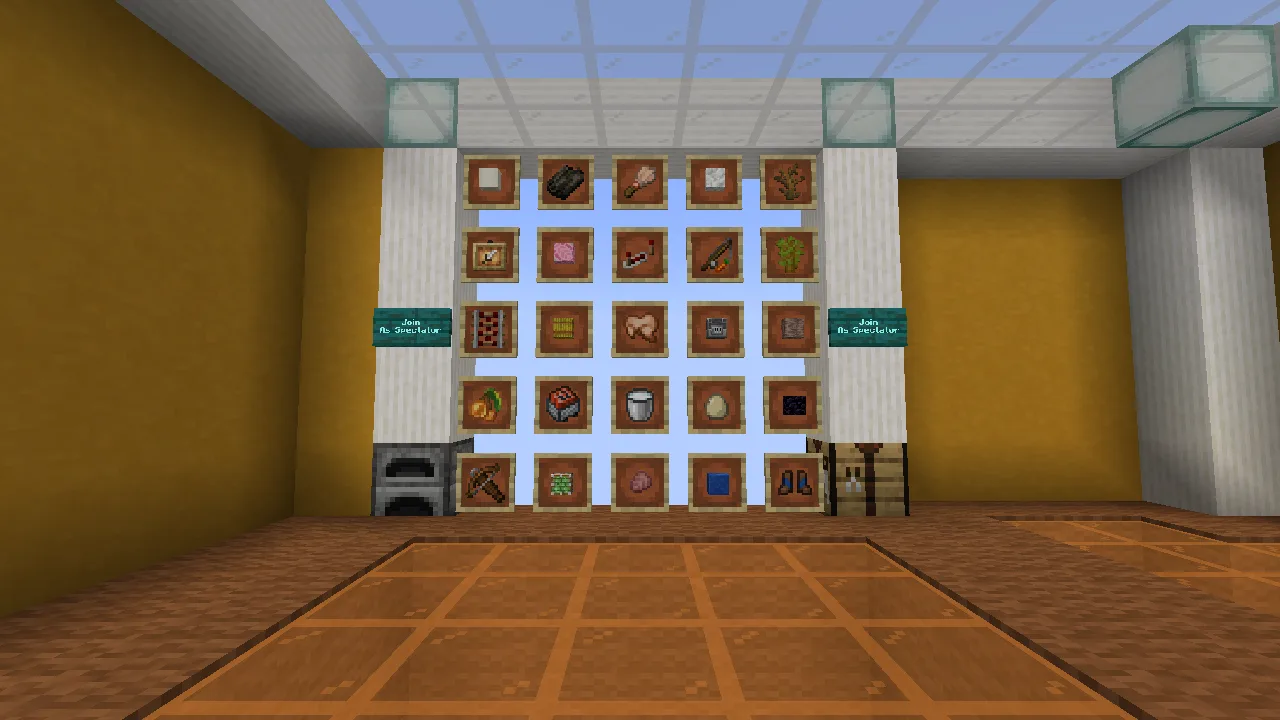
Read across rows, down columns, and along diagonals before choosing a route.
Start with a line, then decide how far to go
A Bingo is a complete row, column, or diagonal. If you want a longer challenge, Blackout means filling all 25 squares. You do not have to leave as soon as Bingo appears: the card keeps accepting new items, so a short goal can become a longer adventure.
For a first session, look for a line you understand instead of chasing whichever icon catches your eye. A line with one awkward requirement may take more planning than several scattered easy items. That tradeoff is the fun: you are choosing a route, not just ticking off a shopping list.
Choose the world for your game version
The file history now includes Fetchr 5.3.3, a stable release we opened on Java 1.21.10, alongside the older 5.2.1 files used in the detailed survival walkthrough below. Keep each complete world with its matching game installation.
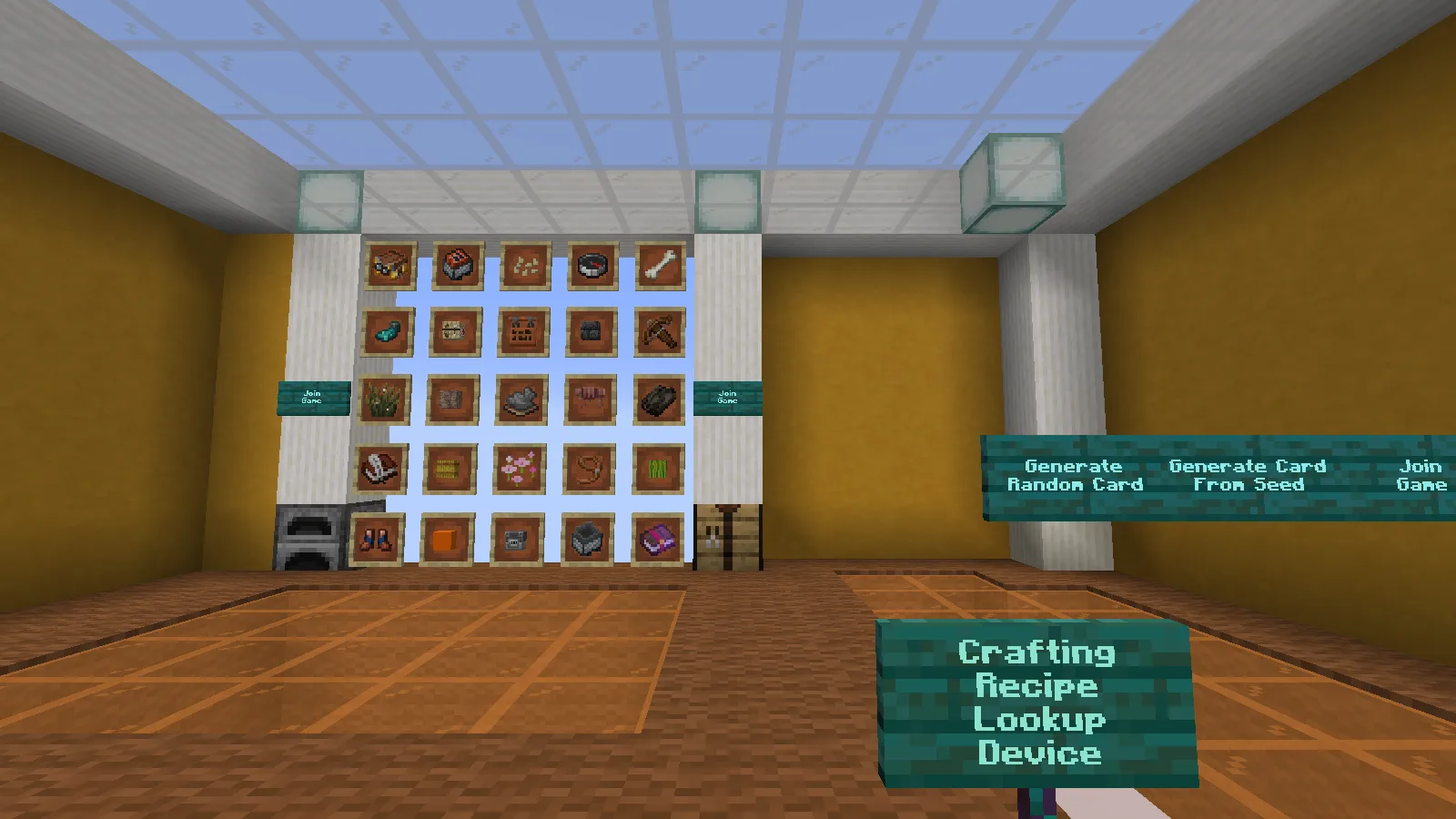
The stable 5.3.3 lobby after generating a card. The later survival examples on this page use 5.2.1.
The board above comes from 5.3.3 after generating a random card. The shape of the challenge remains familiar: compare lines, recognize the exact targets, and decide which route is practical. The older walkthrough below keeps its own version labels so its card, seed and screenshots are not mistaken for the new release.
The separate 5.4-beta3-26.x world is a beta for the newer game generation. Choose Beta in Files only when you want that branch and have a matching game version. Use this archive for a fresh 26.x setup or a Fetchr world that began on 26.1-snapshot-6 or later. Do not use it to update a Fetchr world that originated on 1.21–1.21.11: the creator supplies a different archive for that migration. A later release number does not make those world origins interchangeable. Keep a separate copy when trying previews.
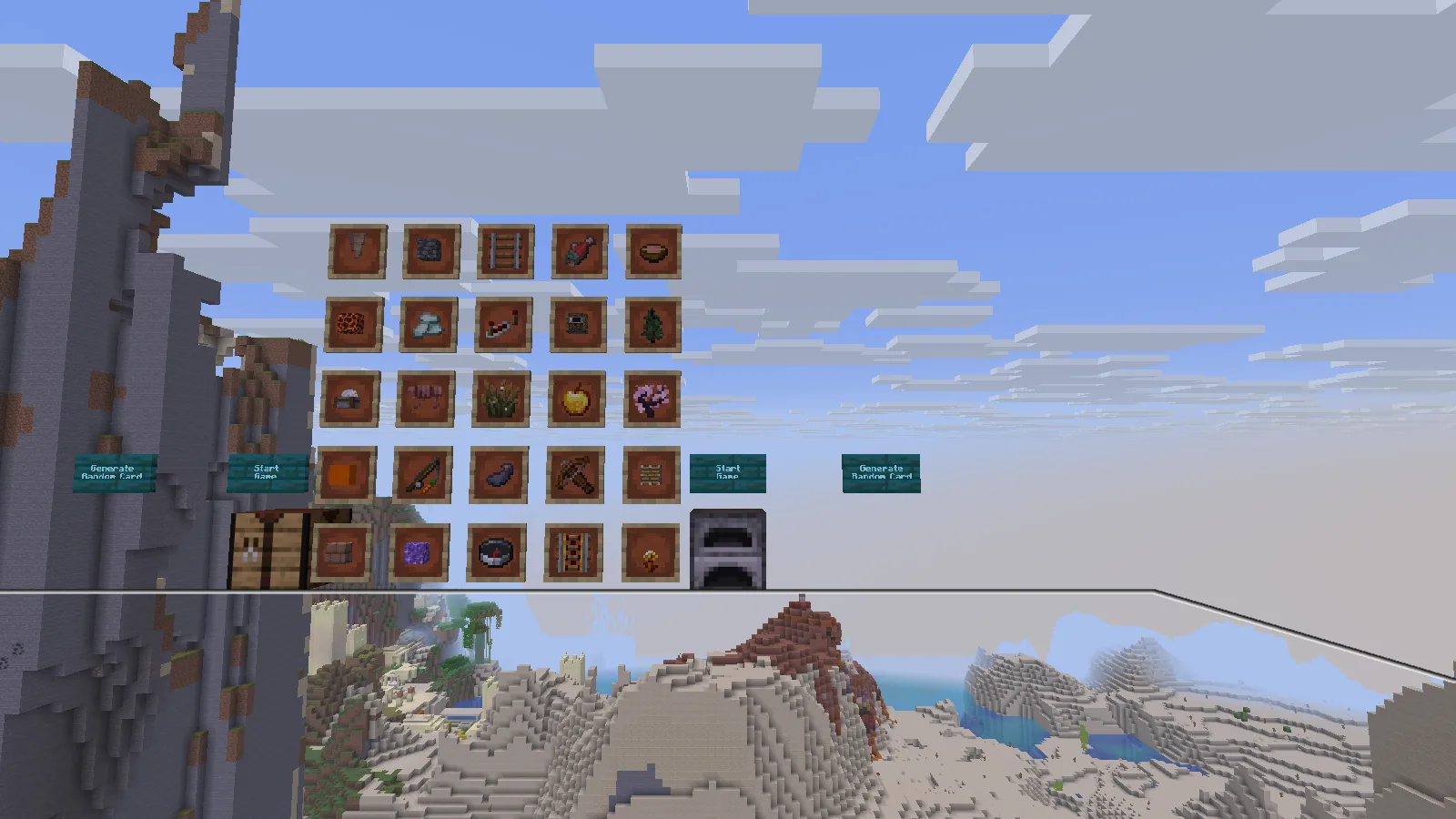
The separate 26.x beta branch on Java 26.2. Compare the targets with the terrain before starting your route.
We also opened the original 26.x beta world on Java 26.2 and generated a card. Its preview puts the targets in front of the starting landscape, which is useful for thinking about the first route before beginning. A forest, a snowy slope and an open plain suggest different priorities even when the board has familiar items.
From download to your first card
This walkthrough uses the Fetchr 5.2.1 world on Java 1.21.1. Open Files and choose the complete world ZIP for that setup. Here is how to get it into the game:
- Close Minecraft and extract the ZIP. Find the folder named Fetchr-5.2.1: its contents include level.dat and the bundled resources.
- Open the game directory for your Java 1.21.1 installation. In the official launcher, find the installation under Installations → Edit → More Options → Game Directory. If it is blank, Windows normally uses %appdata%.minecraft. A launcher with separate instances has its own folder-opening button.
- Put Fetchr-5.2.1 inside that directory’s saves folder. The result should be saves/Fetchr-5.2.1/level.dat, not another ZIP or an extra folder layer.
- Keep resources.zip inside the world folder. Start that same Java installation, choose Singleplayer, and open Fetchr. If the map is missing from the list, check the folder nesting before extracting it again.
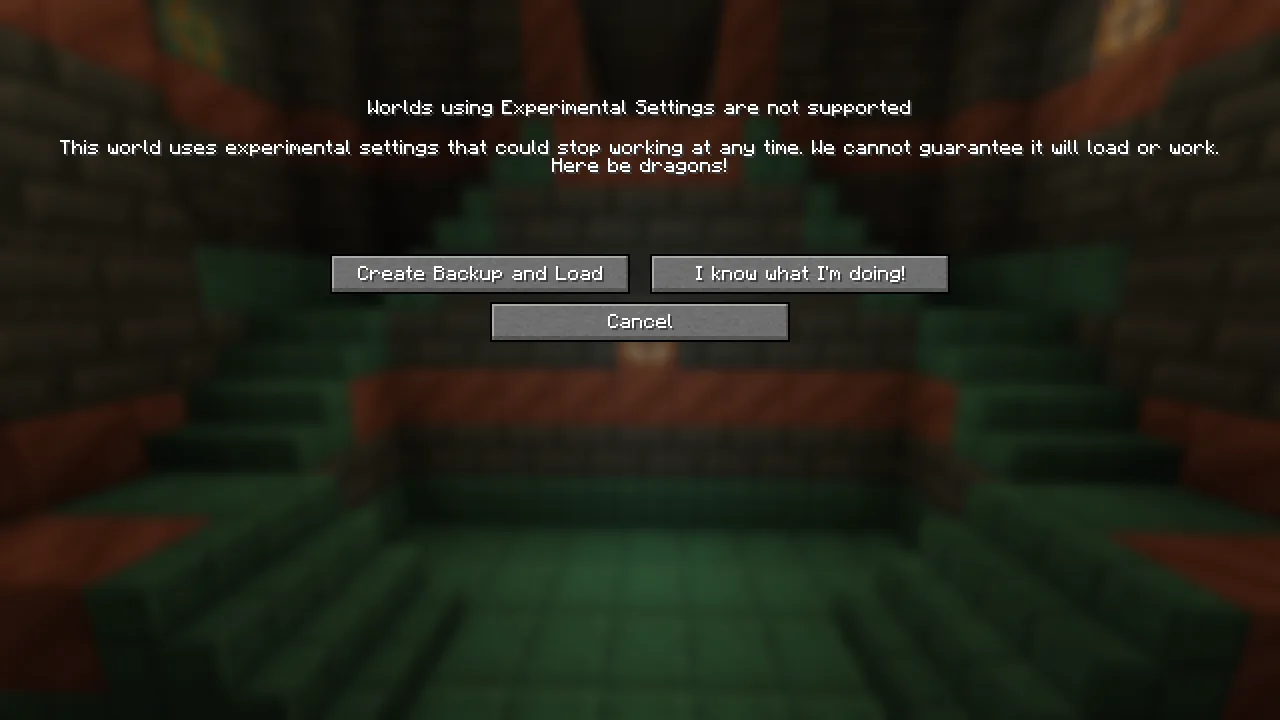
Minecraft can show an experimental-settings warning for this world. Make a backup before loading; the game offers Create Backup and Load. Do not open your only copy in a different game version to see what happens.
In the lobby, Generate Random Card creates a new challenge. Generate Card From Seed is the alternative when you want a repeatable setup. After generating our card, we reached the preparation platform with the board and Start Game controls.
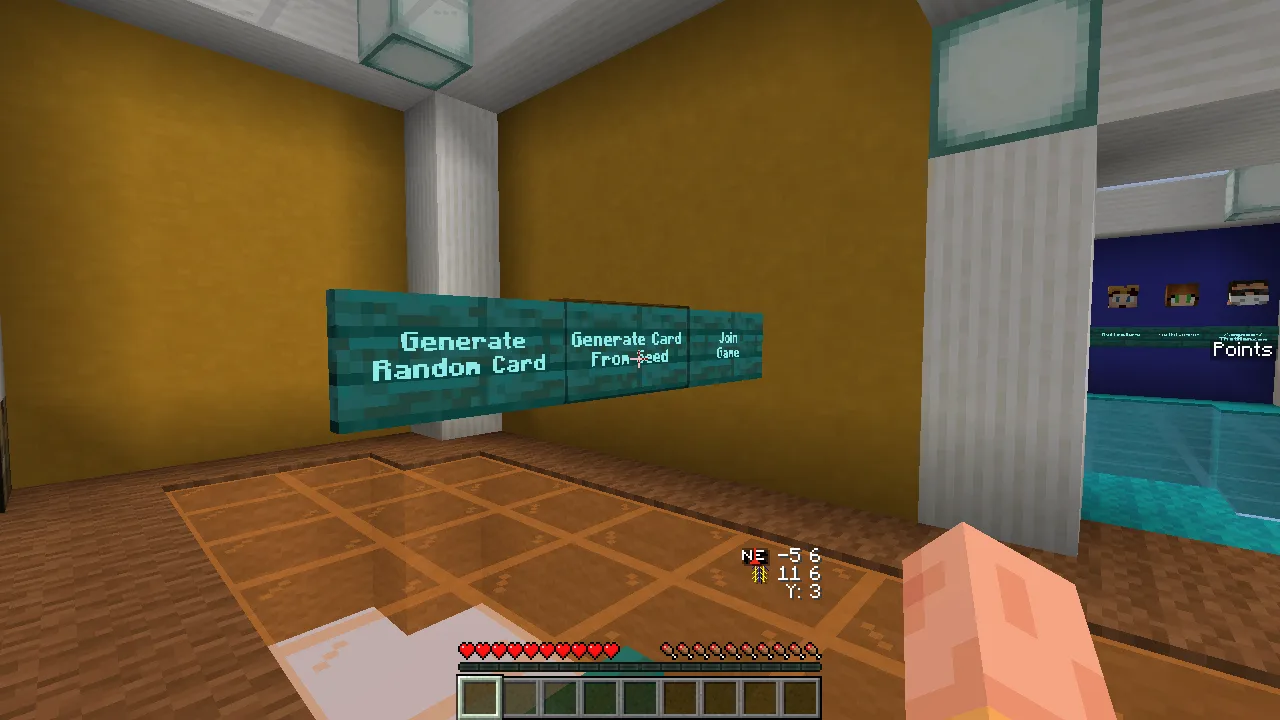
The lobby puts random cards, repeatable seeds, and joining the game side by side.
Take a moment on the platform to inspect the targets. Then use Start Game. The countdown leads into the world with an empty inventory; the small card stays on screen while you play. The seed shown in these screenshots is -443169938 on Fetchr 5.2.1. Treat it as an example for this release, not a promise about other versions.
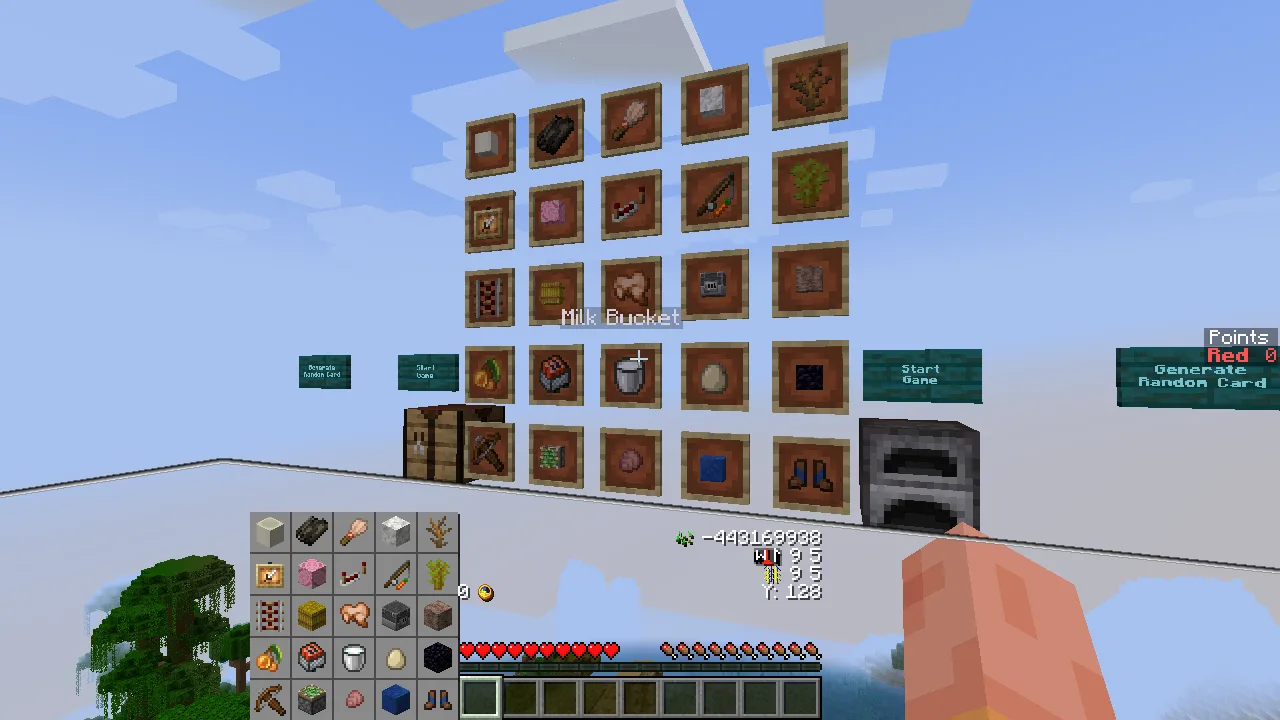
Use the preparation platform to look through the card before starting the run.
Plan around what the world actually gives you
Our card included an acacia sapling, a milk bucket, dried kelp, and several crafted targets. From the forest start, an acacia was visible beyond a pond. That immediately suggested an early direction, but reaching the tree still meant choosing a safe crossing.
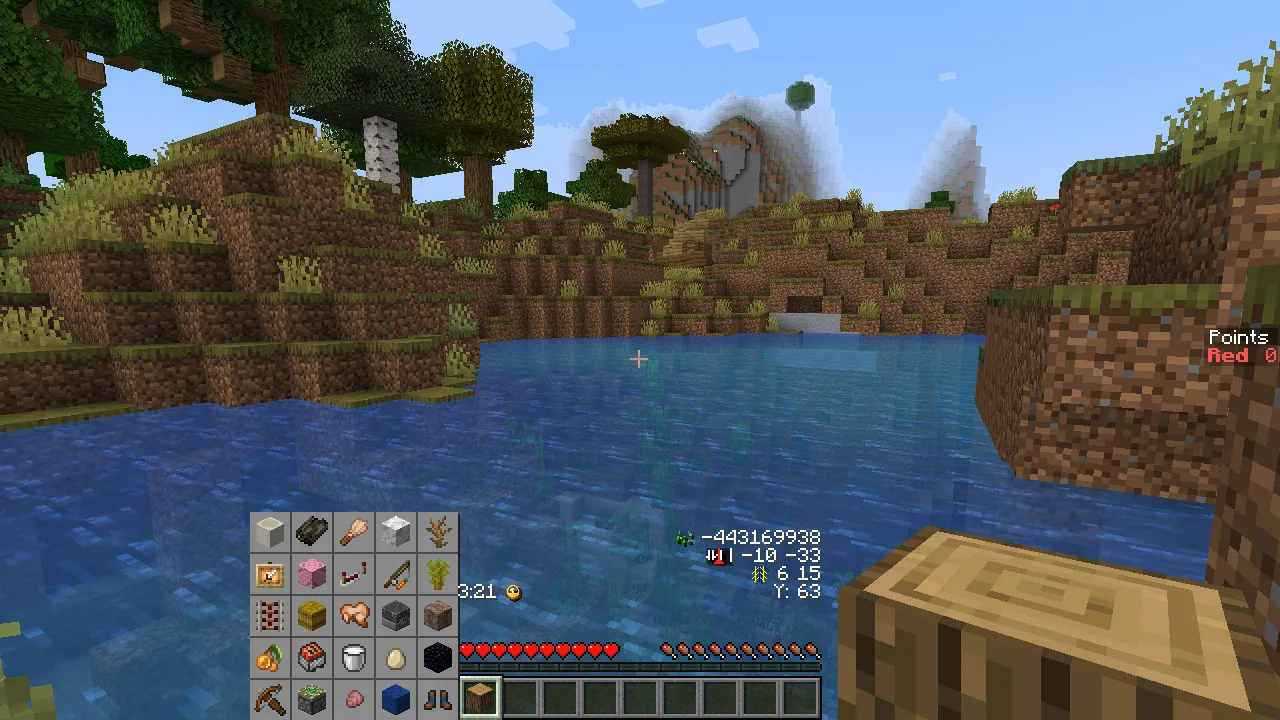
The acacia was easy to spot, but the pond changed the route. Plan how to reach an item, not just where it is.
Try making a small route plan before committing to a whole line:
- Look for nearby opportunities. A visible tree species or animal can be more useful than a theoretically easy recipe whose ingredients are nowhere in sight.
- Notice shared materials. Several targets may need the same mining trip or crafting stop. Gather with the next item in mind.
- Reconsider when a requirement is awkward. You can change your planned line instead of spending the whole session searching for one missing ingredient.
You do not need to carry finished items back to the lobby to turn them in. A matching item entering your inventory registers on the card. The first matching item is consumed, so do not assume that the item used to score will still be available for your next recipe. A duplicate does not earn another point.
Read the target: similar-looking items can mean different tasks
One square on our board looked like leather boots. Its name was Blue Trimmed Leather Boots. The target needs boots with a lapis armor trim; plain leather boots do not match. Blue-dyed leather is a different thing from a lapis trim.
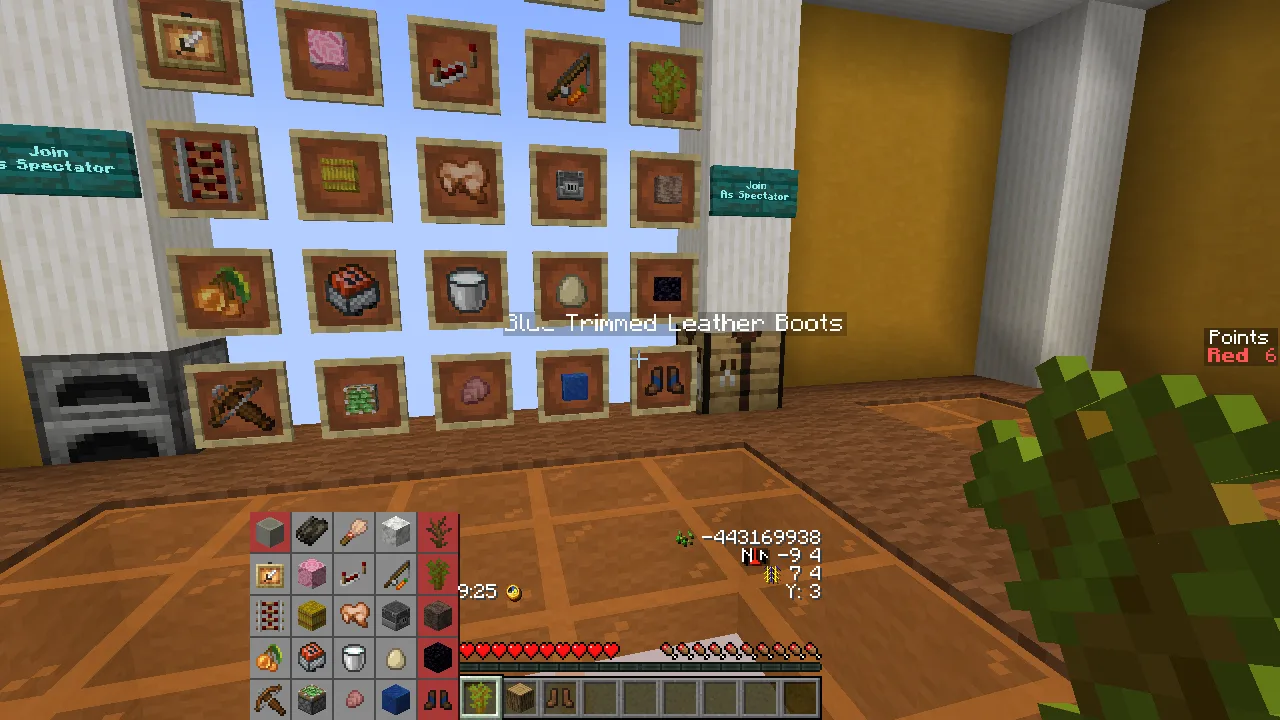
The exact item name matters: these boots need a lapis armor trim, not blue dye.
Aim at a target on the large board to see its name before planning your gathering. This small habit can save a long detour: check whether the goal asks for a finished item, a cooked ingredient, or a particular variant rather than guessing from the icon.
Make it fit the session you want
For a solo evening, start with one Bingo line and keep going only if the board still looks interesting. For a longer exploration session, aim for Blackout from the beginning and think about which resources can serve several targets.
For friends, Fetchr also offers cooperative and competitive play. In Lockout, claiming an item prevents another team from scoring it. Decide whether you want to work together or chase separate lines before starting; the lobby is the place to choose teams and the kind of round you want.
To return during a game, open chat and use /trigger fetchr.menu, then Go to Lobby. This brings the controls back within reach without hunting for an exit in the world.
Playing on a server with friends
For Fetchr 5.2.1, use a Java 1.21.1 Vanilla server, or a compatible Fabric server with Lithium. Paper and Spigot are not supported for this map. These steps start from a server you can already start, stop, and join.
- Stop the server. Keep a backup of its existing world and settings, then extract the complete Fetchr world beside the server JAR. Check that Fetchr-5.2.1/level.dat is directly inside that folder.
- Open server.properties and set the values below. Change the existing lines rather than adding duplicates. The resource-pack address lets the game deliver the matching Bingo display to each player automatically.
level-seed=91
level-name=Fetchr-5.2.1
require-resource-pack=true
resource-pack=https://github.com/NeunEinser/bingo/releases/download/5.2.1/Fetchr-5.2.1-resourcepack.zip
resource-pack-sha1=BE1935DEEE6ADBA85F5F600357DE86F119658882
pvp=false
function-permission-level=2
generate-structures=true
spawn-npcs=true
spawn-animals=true
spawn-monsters=true
max-world-size=29999984
- Save the file and restart the server. Every player should join using Java 1.21.1 and accept the server resource pack. In the server entry’s Edit screen, set Server Resource Packs to Enabled if it was previously disabled.
- Meet in the lobby, choose teams, generate a card, and use Start Game when everyone is ready.
If you land in an ordinary new world, stop the server and compare level-name with the extracted world folder’s exact name. If the card appears as strange symbols, reconnect with the resource pack enabled. Do not reuse these version-specific settings for a different Fetchr release.
Fetchr is by NeunEinser and contributors, building on Lorgon111’s Minecraft Bingo idea. Modonix created this illustrated guide. Choose your game version in Files, and use the page’s report action if a particular file gives you trouble.
Comments & questions
Share what worked, ask for help or reply to another player.
No comments yet. Share what worked for you.