
Use this editable example to turn layered artwork into eight craftable Java blocks. It targets the Java Fabric 1.21.1 project shown beside the download. A resource pack changes textures on content Minecraft already has; a mod can add blocks and recipes. Edit with the source ZIP; download the installable JAR separately.
1. Save your work and open the source kit
Save work before importing another project. Download and extract the Glassworks editable source ZIP. Its constructor/ folder contains the project JSON for the add-on constructor. Its artwork/ folder contains eight editable artwork JSON projects for the texture editor. It is not an installable mod, resource-pack ZIP, or Gradle project.
The two editors use .modonix.json for different source formats. Import each file only into its matching editor. Artwork JSON preserves editable layers; Download PNG flattens those layers into one image. Choose Download editable project to preserve the artwork layers; use Download PNG when you need a flattened texture.
2. Import and inspect the constructor project
In the add-on constructor, choose Project → Import project JSON and select the file in constructor/. Select Java Fabric 1.21.1, then inspect the block and recipe lists. The project contains eight blocks and eight shapeless recipes: Clear Bronze Glass, Reeded Bronze Glass, Smoke Bronze Glass, Bronze Lattice, Terracotta Brick, Limestone Ashlar, Dark Bronze Profile, and Opal Lantern Block. 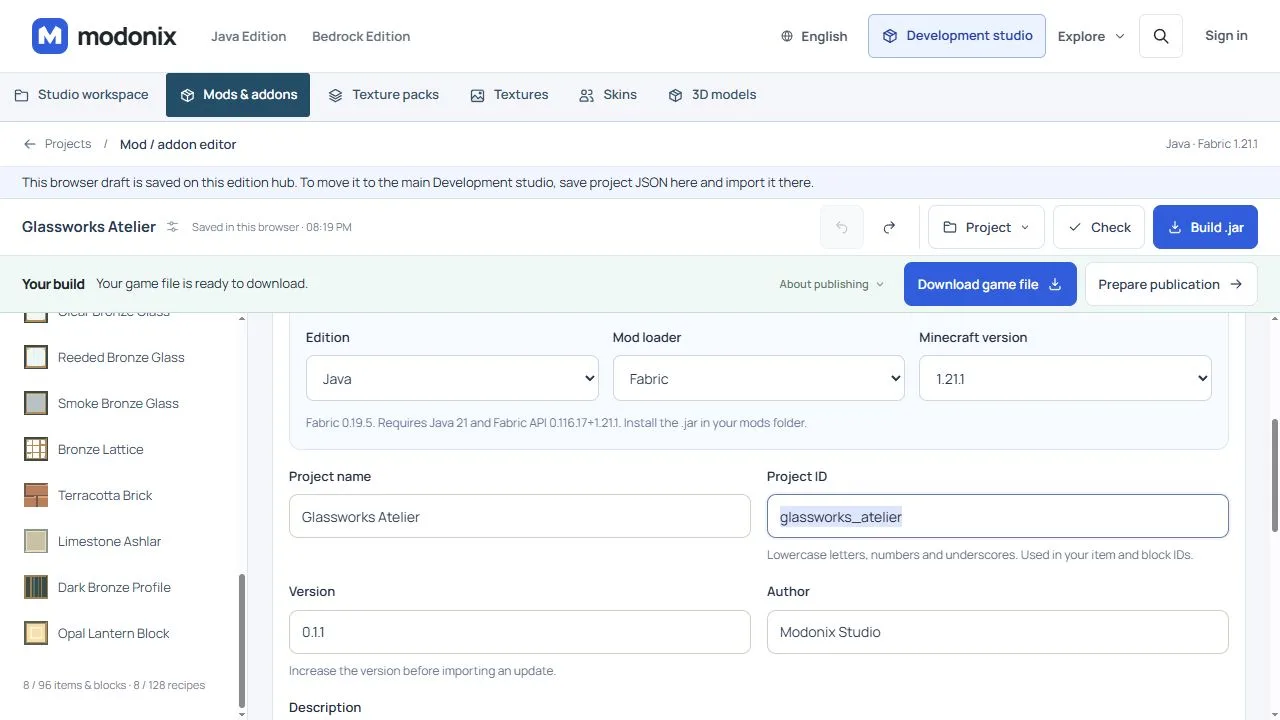
The constructor project is set to Java Fabric 1.21.1 and version 0.1.1.
Transparent pixels do not reduce collision. Bronze Lattice has visible holes but full-cube collision. Plan it as a decorative screen beside a doorway or between work zones, not as a fence to walk through. The smoke-tinted glass showed the floor through its tint. Opal Lantern Block emits light level 10; light immediately beside it was level 9.
3. Edit artwork without losing layers
In the texture editor, choose Import PNG / project and select one file from artwork/, such as Glassworks-Clear-Bronze.modonix.json. This is artwork JSON, not constructor JSON.
Clear Bronze contains Glass tint and Bronze frame layers. To change the rim color, edit only the original Bronze frame layer and leave Glass tint intact. Reeded and Smoke also separate tint from frame. Seven of the eight artwork projects have multiple layers; Bronze Lattice has one editable Bronze frame layer. Download PNG creates a flattened copy without the layers. 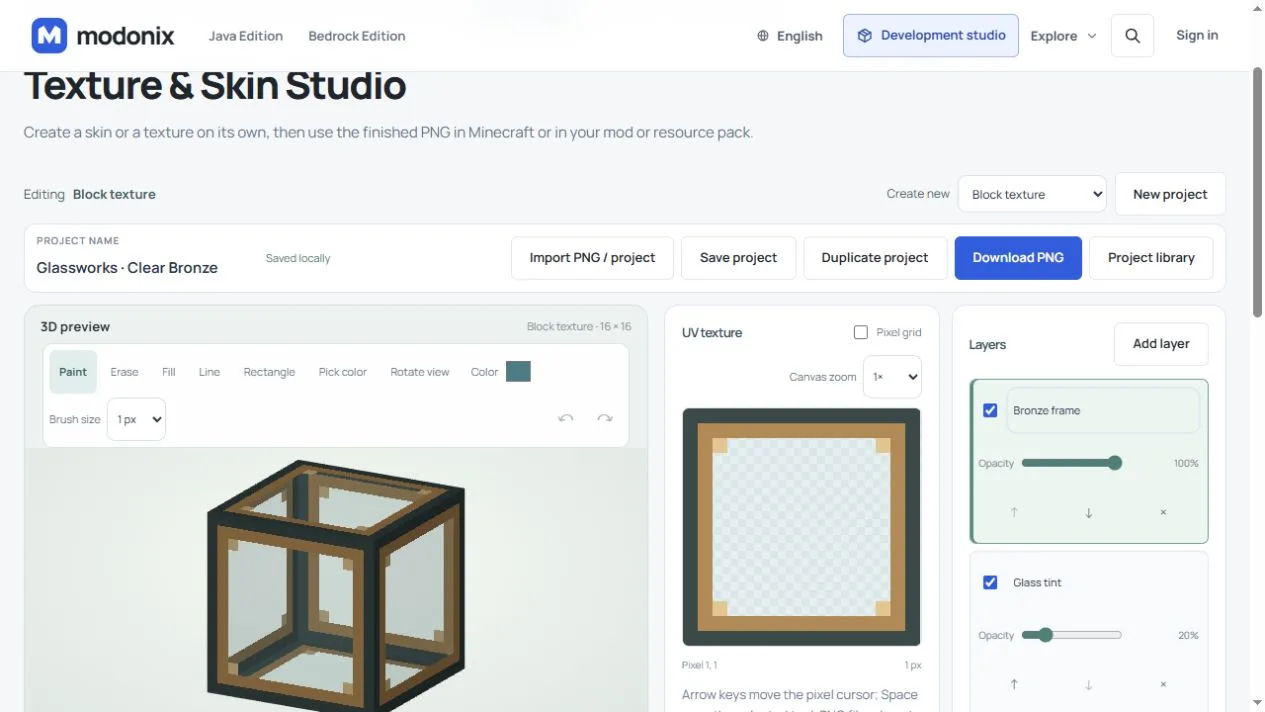
The Clear Bronze artwork editor shows a 3D glass cube and its UV texture, with Bronze frame at 100% opacity and Glass tint at 20%.
Use alpha for the intended look: opaque pixels cover the face; transparent pixels create visual cutouts; partial alpha can tint translucent glass. Material mode is a separate constructor setting. Changing alpha does not automatically select Cutout or Translucent.
4. Apply textures and set material and light
Select a block in the constructor and apply its PNG. This copies the image into the block project; the separate artwork does not live-sync. After editing, export or download the revised PNG and apply that copy again. Check the block. 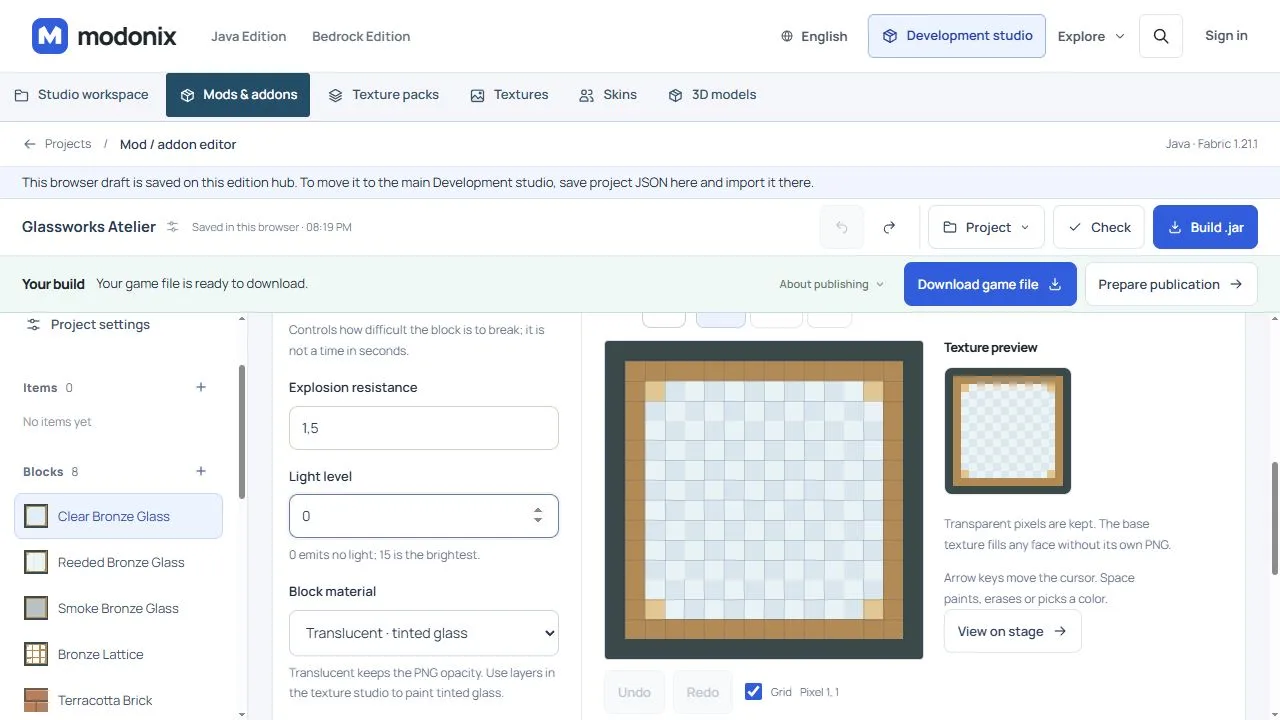
The Clear Bronze Glass block uses Translucent material, keeps its transparent PNG pixels, and has light level 0.
Choose Opaque for masonry and solid trim, Cutout for crisp transparent openings, and Translucent for tinted glass with partial alpha. The Java shape editor is unavailable for this target, so every piece remains a cube. Bronze Lattice has visual holes but solid collision.
Set Light blocking separately from emitted Light level. Blocking ranges from 0, which lets light pass, to 15, which blocks it; it does not make a block glow. Opal Lantern Block emits level 10. Use Clear Bronze Glass in the broad window, Reeded Bronze Glass for a textured side panel, and Smoke Bronze Glass for an upper band or private partition.
5. Check recipes and preserve identifiers
Recipes are shapeless, so ingredient positions do not matter. Confirm ingredients, result block ID, and output amount:
- 4 minecraft:glass + 1 minecraft:copper_ingot → 4 Clear Bronze Glass.
- 1 Clear Bronze Glass + 1 minecraft:quartz → 1 Reeded Bronze Glass.
- 1 Clear Bronze Glass + 1 minecraft:coal → 1 Smoke Bronze Glass.
- 2 minecraft:copper_ingot + 1 minecraft:iron_ingot → 4 Bronze Lattice.
- 4 minecraft:brick + 1 minecraft:clay_ball → 4 Terracotta Brick.
- 4 minecraft:calcite + 1 minecraft:quartz → 4 Limestone Ashlar.
- 2 minecraft:copper_ingot + 1 minecraft:coal → 4 Dark Bronze Profile.
- 4 minecraft:glass + 1 minecraft:glowstone_dust + 1 minecraft:quartz → 4 Opal Lantern Block.
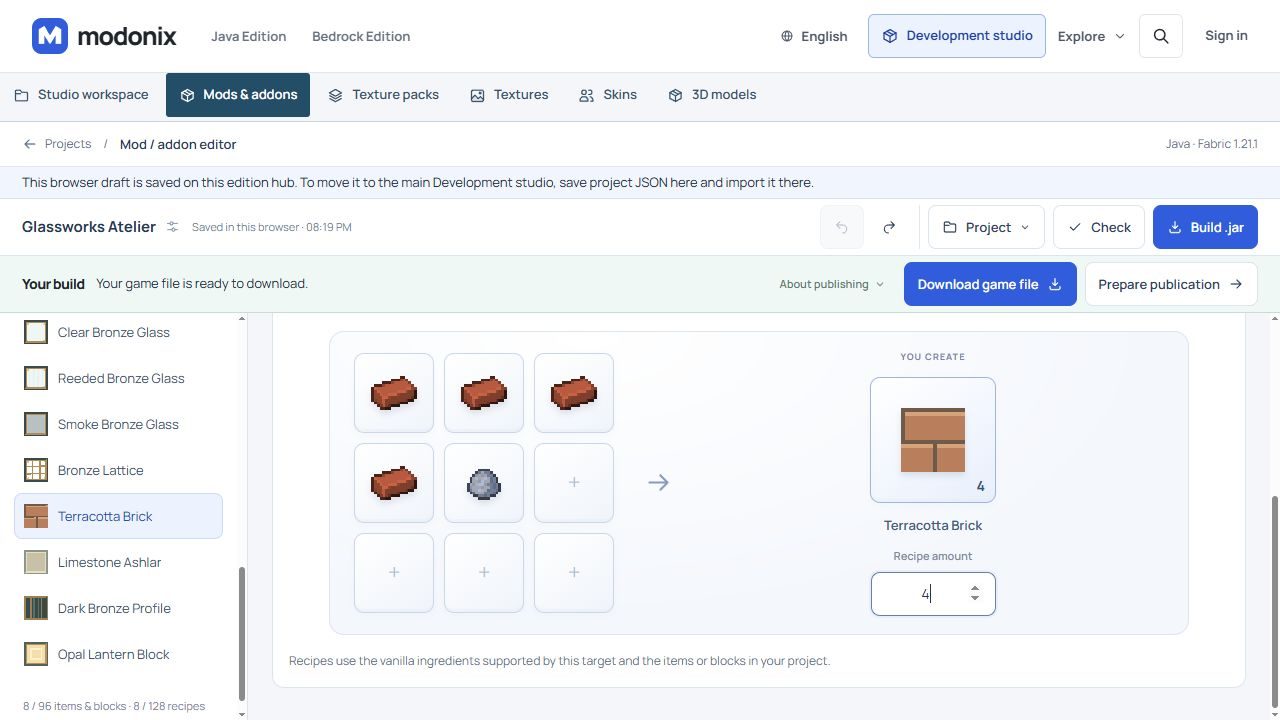
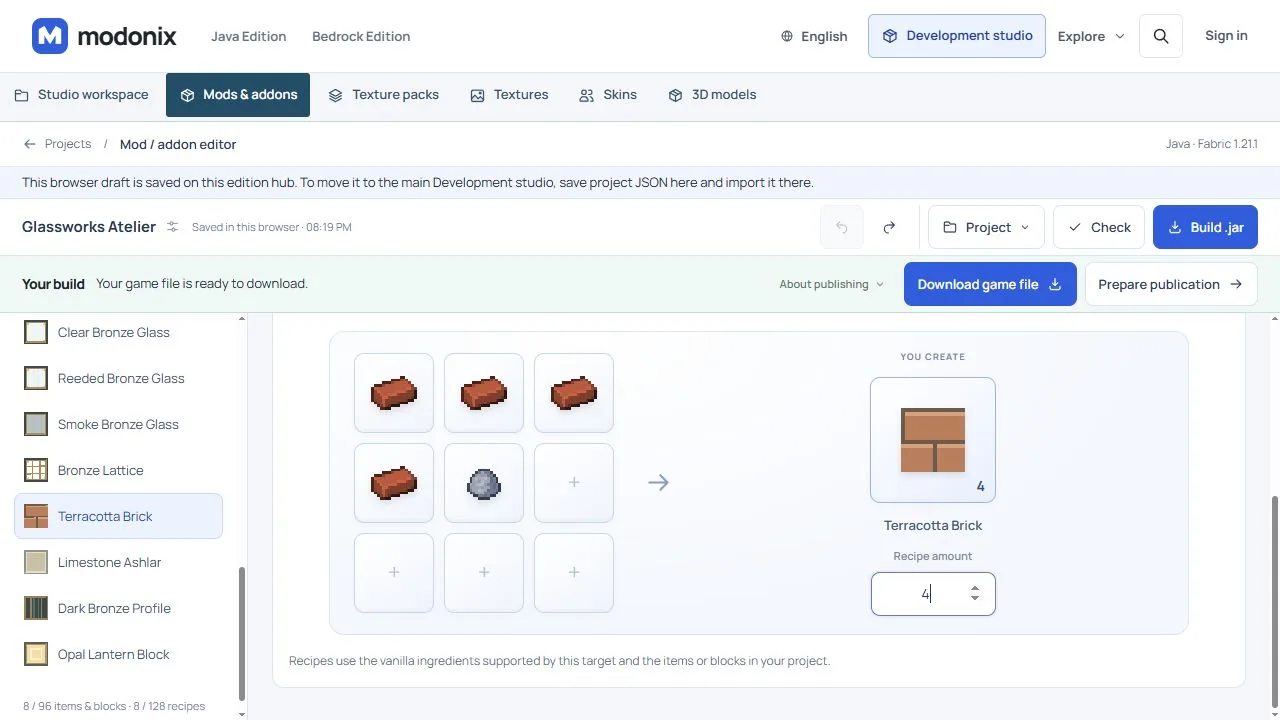
The Terracotta Brick recipe uses four Brick items and one clay ball to make four blocks.
The clay ball is deliberate. Minecraft’s vanilla 2×2 recipe turns four Brick items into one Bricks block. Adding clay keeps Terracotta Brick distinct, so the familiar craft remains available. Do not remove the vanilla recipe to resolve the overlap.
Keep each block and recipe ID unique. Before duplicating a design, inspect copied IDs and update references deliberately; do not assume Duplicate project changes every ID. A recipe result must point to the intended block. Check IDs after renaming or copying.
6. Save, export, and try a small build
Save the constructor project JSON as your editable master with Project → Save project JSON. The JSON is constructor source, not the installed mod. Choose Check to validate the project, then Build .jar to create the JAR. Do not rename the source ZIP or a Bedrock .mcaddon and treat it as a Java mod.
For installation, download the JAR and follow the requirements beside its file. Put the JAR and dependencies in mods for the same compatible Fabric profile. 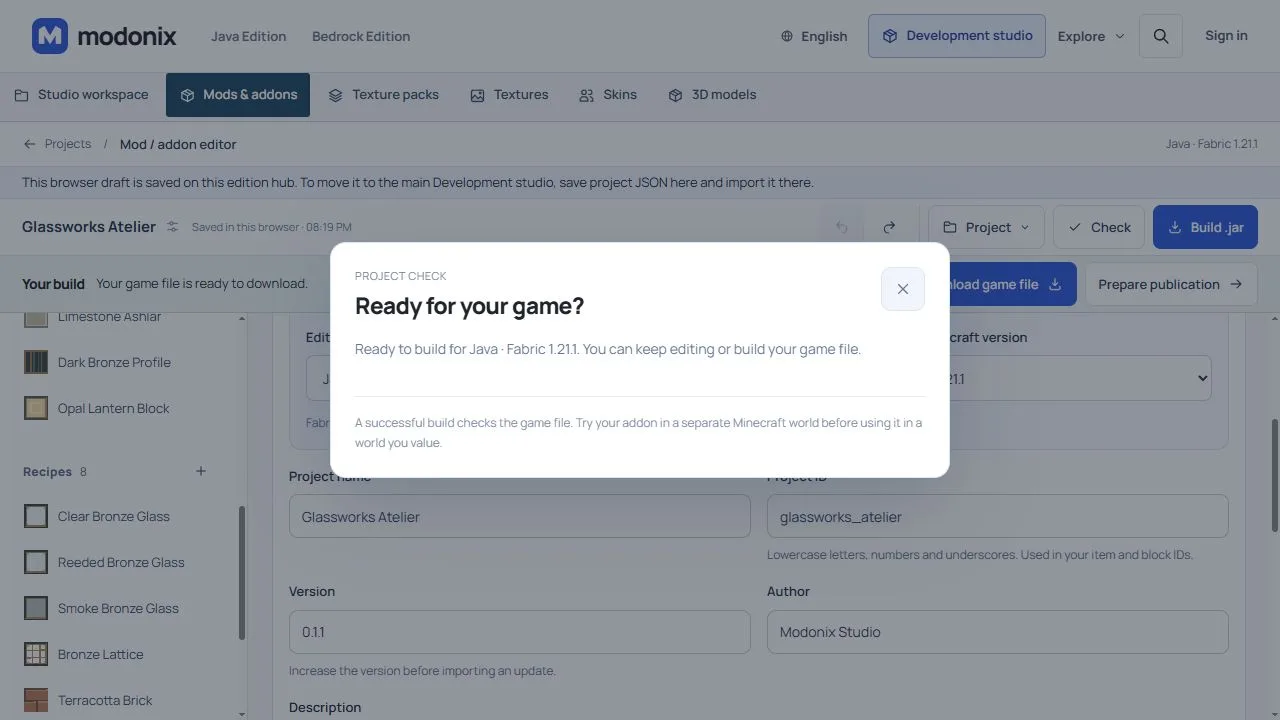
The project check says the build is ready for Java Fabric 1.21.1; Build .jar and Download game file remain visible.
Start with one window bay and nearby workbench. Try clear, reeded, and smoke glass in separate full-block sections; use smoke where you want a tinted view of the floor behind it. Add Dark Bronze Profile around the opening, use Limestone Ashlar to brighten the doorway, and put Opal Lantern Block in a pier or support. Keep Bronze Lattice beside a path or between work areas where its solid collision will not obstruct movement.
Troubleshooting
If glass looks solid, check that the PNG has alpha and the block uses Translucent; for sharp holes, use Cutout. If art edits do not appear, apply the updated PNG again because the constructor keeps a copy. If import fails, send artwork JSON to Import PNG / project and constructor JSON to Project → Import project JSON. For recipe errors, compare the result ID and count with the block entry. If brick crafting overlaps, keep the vanilla recipe and use clay for Terracotta Brick. If placements seem lost after editing, inspect IDs; world blocks do not sync with artwork. An ID change can invalidate old placements, so test in a world copy and keep a backup. Save normally and reopen to confirm persistence.
View the Glassworks Atelier mod and its compatibility details.
Comments 0
Share what worked, ask for help or reply to another player.
Use your Modonix account to join the discussion and manage your comments.
Sign in to commentNo comments yet. Share what worked for you.